Best Android TV Box for IPTV UK 2026
8 September 2026 · 9 min read
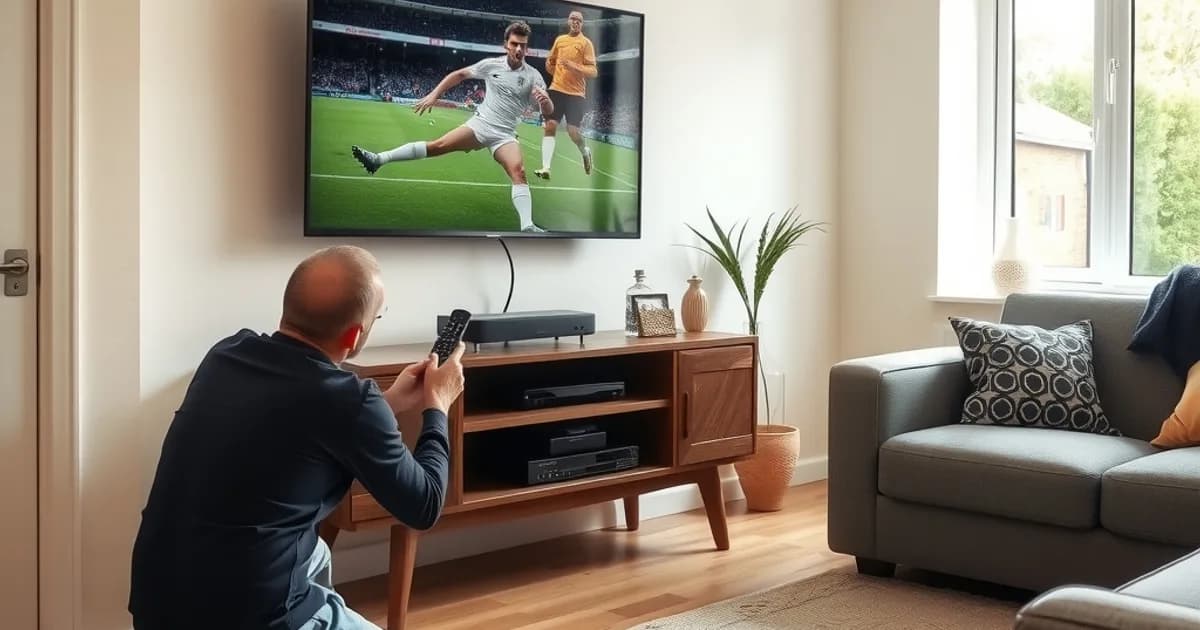
September marks the start of peak gadget-buying season in the UK. Premier League and EFL fixtures are stacking up midweek and weekend, Champions League group games are underway, and a lot of viewers who spent last winter fighting with a Firestick's memory limits are shopping for something sturdier. Android TV boxes keep coming up in that search — and for good reason.
Most of the coverage out there treats an Android TV box like any other streaming stick: a spec sheet, a star rating, a "best of" list. What's missing is the IPTV-specific detail — how these boxes actually behave with an M3U playlist or Xtream Codes login, which apps are worth installing, and whether the extra processing power and Ethernet port genuinely change your experience during a 4K match versus what you'd get on a Firestick or Roku.
This guide fills that gap. We compare the NVIDIA Shield TV Pro against the MECOOL KM2 Plus specifically for IPTV workloads, walk through setup from unboxing to first channel, and end with a straight decision tree so you're not guessing.
Why an Android TV Box for IPTV: Performance, 4K, and Ethernet vs Firestick & Roku
A Firestick or Roku stick is built to a price and a power budget. That's fine for Netflix, but IPTV apps like TiviMate or XCIPTV are constantly parsing large playlists, holding an EPG in memory, and decoding a live video stream — and on a stick with limited RAM, that combination is exactly what causes app crashes, slow channel switching, and the EPG taking forever to populate on first load.
Android TV boxes solve this with more RAM (typically 2-4GB on mid-range models, versus roughly half that on entry Firesticks), more storage for caching, and — critically for IPTV — a physical Ethernet port on most models. Wi-Fi is the single biggest cause of buffering during peak-hours football, because your IPTV stream is sharing 2.4GHz or 5GHz bandwidth with every other device in the house. Plugging in via Ethernet removes that variable entirely.
The autumn timing matters here. As Premier League and EFL Championship schedules intensify through September and October, midweek fixtures mean more households streaming at the same peak hours your ISP is busiest. A box that can hold a stable wired connection and decode 4K H.265 without dropping frames is doing real work during exactly those windows — not just a nice-to-have spec.
Not sure if your current box can handle 4K sport? Ask us before you buy new hardware.
NVIDIA Shield TV Pro vs MECOOL KM2 Plus: Specs & IPTV Performance
The Shield TV Pro is the long-standing benchmark in this category, and it's worth noting NVIDIA has kept it in production and patched for years rather than replacing it — its Tegra X1+ chip and 3GB RAM still outrun most newer budget boxes on raw app-switching speed. For IPTV, that translates into near-instant channel changes and an EPG that scrolls without stutter, even on playlists with several thousand entries. Its main gap is AV1 decoding, which barely matters for IPTV today since most providers still stream H.264/H.265.
The MECOOL KM2 Plus, running Google-certified Android TV on an Amlogic S905X4 chip, is the newer and cheaper alternative. With Gigabit Ethernet, Wi-Fi 6, and AV1/HDR10+/Dolby Vision support on paper, it looks competitive — and for standard-definition or HD IPTV channels it holds up well. Where it shows its budget positioning is under sustained load: running TiviMate with a large EPG plus a 4K stream in the background is more likely to produce the occasional frame drop or app restart than on the Shield.
In practice, the difference isn't about who can play a 1080p match — both can. It's about consistency across a full 90 minutes with the EPG open, a second app minimised, and Ethernet doing the heavy lifting. If you want a deeper side-by-side that includes Apple TV as a third reference point, see nvidia-shield-vs-apple-tv-iptv-uk-2026 — the performance gap between Shield and mid-range Android boxes tracks closely with the gap discussed there against Apple TV.
Budget Android TV Boxes Under £80: What You're Sacrificing
There's a real market of sub-£80 Android TV boxes from brands beyond MECOOL and NVIDIA, and they're not a scam — they run genuine Android TV or a forked Android build and will install TiviMate or XCIPTV without issue. What you're trading away is headroom: less RAM (often 1-2GB), a weaker CPU, and in many cases no Gigabit Ethernet, just a 100Mbps port or Wi-Fi only.
For someone watching one IPTV stream at a time in SD or HD, that's a fair trade for the price. Where it becomes a problem is 4K sports with a full EPG loaded, or a household running IPTV on more than one screen at once — the kind of setup covered in iptv-multi-screen-uk-one-subscription-explained. Budget hardware is the first thing to bottleneck when you scale up usage, before your subscription or your broadband ever becomes the issue.
A reasonable rule: if you're buying primarily for 4K football and plan to keep the box for a few years, spend up. If it's a secondary bedroom TV or you're testing IPTV for the first time, a budget box is a legitimate way to start.
How to Set Up IPTV on Android TV Box: M3U & Xtream Codes
Setup on Android TV differs from Firestick mainly in app sourcing. Most Android TV boxes ship with the Google Play Store already signed in, so TiviMate, XCIPTV, and OTT Navigator install directly — no sideloading via Downloader app required, which is one step fewer than the Firestick process.
Once installed, you'll be asked to add a playlist using either an M3U URL or Xtream Codes login (server address, username, password). Xtream Codes is generally the smoother option on Android TV apps because it pulls the EPG and VOD categories automatically, where a raw M3U link sometimes needs a separate EPG XML URL added manually in the app's playlist settings.
After the playlist loads, go into the app's settings and confirm the video decoder is set to hardware (not software) decoding — this is the setting most responsible for smooth 4K playback on Android TV boxes, and it's occasionally defaulted to software on first install. If you want a realistic sense of how long the whole process should take from unboxing to first channel, iptv-setup-time-uk-how-long-should-it-take breaks that down step by step.
Best IPTV Apps for Android TV: TiviMate, XCIPTV, OTT Navigator Compared
TiviMate remains the most polished option on Android TV specifically — its EPG grid is fast, multi-screen (picture-in-picture) works reliably on Shield-class hardware, and channel favourites/groups are easy to organise. Its premium tier is optional but adds catch-up TV and better parental controls.
XCIPTV is a close second and tends to be lighter on lower-spec boxes like budget MECOOL models, since its interface has fewer background processes running. It's a sensible pick if you're on a sub-£80 box and want to avoid the occasional stutter TiviMate can show under heavier load.
OTT Navigator is the most configurable of the three — multiple playlist support, custom EPG offsets, and granular buffer settings — but that flexibility comes with a steeper learning curve. It suits viewers who already know they want to tune buffer size manually for their connection rather than rely on app defaults.
For a full breakdown of these apps against Smarters Player and others across device types, not just Android TV, see best-iptv-apps-uk-tivimate-vs-smarters-2026.
Fixing Buffering & ISP Throttling on Android TV IPTV
Buffering on an Android TV box usually traces to one of three causes: Wi-Fi congestion, insufficient buffer settings in the app, or ISP throttling during peak hours. Since most Android boxes support Ethernet, ruling out Wi-Fi first is the quickest fix — plug in directly and retest during a live match.
If buffering persists over Ethernet, increase the app's buffer size (TiviMate and OTT Navigator both expose this under playback settings) from the default to a few seconds higher. This adds a small delay before playback starts but smooths over brief network dips that would otherwise cause a stutter or freeze.
ISP throttling is harder to diagnose by feel alone — it tends to show up specifically at peak evening hours regardless of what you change on the box. Running an actual bitrate test is the only reliable way to tell the difference between a box problem and an ISP problem; see iptv-bitrate-test-uk for a step-by-step method you can run from the same network your Android TV box is on.
4K Sports Streaming on Android TV: Bitrate & Network Setup
4K sports content is bitrate-hungry and fast-moving, which makes it the most demanding test for any IPTV setup. On Android TV boxes, the two settings that matter most are hardware decoding (covered above) and a wired connection capable of sustaining the stream's bitrate without dropped packets during camera pans and replays, which spike data momentarily.
If your router is more than a few years old or you're on a shared household connection during weekend fixtures, consider whether your Android TV box is competing with other 4K streams (Netflix, a games console update) at kickoff. Gigabit Ethernet on the box itself doesn't help if the bottleneck is further upstream on your router or broadband plan.
Households running IPTV on more than one TV at once — say, the living room in 4K and a bedroom box in HD — should read iptv-multi-screen-uk-one-subscription-explained before assuming a single Android TV box needs troubleshooting; often the real constraint is total household bandwidth, not any one device.
Once your Android TV box is set up, see the plans built for smooth 4K IPTV streaming.
Which Android TV Box Should You Buy? Decision Tree
If 4K football is the main use case and you want the fewest headaches for the next few years: NVIDIA Shield TV Pro. It's the most expensive route here, but its consistency under EPG and 4K load is the clearest advantage in this comparison.
If you want strong Ethernet, Wi-Fi 6, and AV1/Dolby Vision support at a lower price and mostly watch HD or occasional 4K: MECOOL KM2 Plus is a well-specced middle ground.
If IPTV is new to you, it's a secondary screen, or budget is the priority: a sub-£80 Android TV box is a reasonable starting point — just set expectations around 4K and multi-app performance accordingly.
Whichever box you choose, the app and setup steps above apply the same way — the hardware changes the ceiling on performance, not the setup process itself.
Frequently asked questions
Is an Android TV box better than a Firestick for IPTV?
For most IPTV use, yes — more RAM, more storage, and (on most models) a physical Ethernet port make channel switching, EPG loading, and 4K playback noticeably more consistent than on a typical Firestick, especially during peak-hours live sport.
Do I need to root an Android TV box to install IPTV apps?
No. TiviMate, XCIPTV, and OTT Navigator are all available directly through the Google Play Store on Android TV boxes with Play Store access, so no rooting or sideloading is required in most cases.
Does the MECOOL KM2 Plus support 4K IPTV properly?
Yes for standard 4K playback with hardware decoding enabled. Under heavier load — a large EPG plus a 4K stream running simultaneously — it's more prone to occasional stutter than higher-spec hardware like the Shield TV Pro, but it handles typical 4K IPTV viewing well.
Should I use M3U or Xtream Codes on Android TV?
Xtream Codes login tends to be smoother on Android TV apps because it pulls the EPG and VOD categories automatically. M3U works fine too, but you may need to add a separate EPG XML URL manually depending on the app.
Why does my Android TV box buffer even with a fast broadband connection?
Fast broadband doesn't rule out Wi-Fi congestion, an undersized app buffer setting, or peak-hour ISP throttling on the specific route to your IPTV server. Switching to Ethernet and running a bitrate test are the two fastest ways to isolate the actual cause.
Next, see the subscriptions or the FAQ.