Chromecast with Google TV: IPTV Setup for UK 2026
12 August 2026 · 9 min read
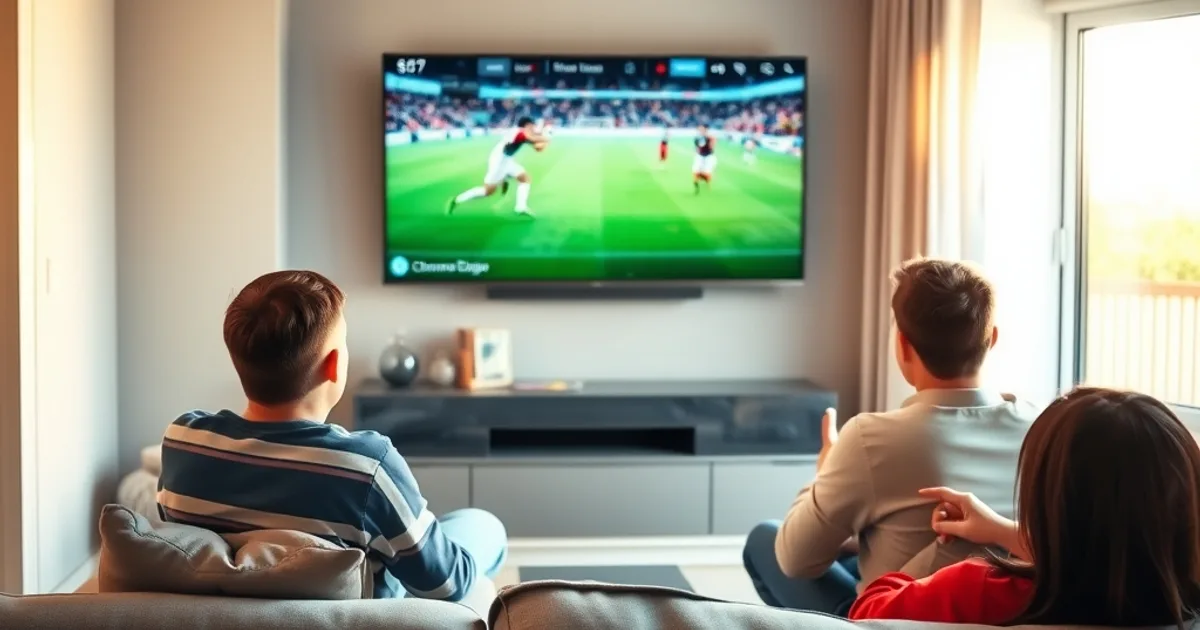
The Premier League season kicks off on 22 August 2026, and the transfer window slams shut nine days later on the 31st — which means the next few weeks are exactly when UK households are testing new streaming setups before the fixtures pile up. If you've been putting off buying a Firestick because you don't fancy sideloading apps through developer mode, Chromecast with Google TV is worth a proper look. It runs on Android TV underneath, which means TiviMate, IPTV Smarters Pro and every other serious IPTV app is sitting right there in the Play Store — no unknown-sources toggle, no third-party APK downloader, no warning screens to click through.
That single difference changes who the device is for. Firestick still wins on raw app-store breadth and on Alexa integration, but Chromecast with Google TV is the calmer choice for anyone who wants IPTV working in under fifteen minutes without becoming the household's part-time systems administrator. This guide walks through the full setup on a real device: installing the app store version of your IPTV player, connecting your subscription, tuning 4K HDR output so football actually looks like football, setting up separate profiles for the rest of the family, and — the part most guides skip — what to actually change when a live match starts buffering in the second half.
None of this assumes you're a tech person. Every step below is something you do once and then forget about.
Why Chromecast with Google TV for UK IPTV in 2026
Three things make this device a genuinely good fit for IPTV right now. First, cost: it sits well below flagship streaming boxes and is usually the cheapest 4K HDR streamer Google or its retail partners sell, which matters if you're kitting out more than one TV in the house. Second, the Play Store access mentioned above — TiviMate's official listing and IPTV Smarters Pro both install exactly the way Netflix or BBC iPlayer would, with automatic updates handled in the background. Third, the remote has a dedicated Google Assistant button, so voice search across your installed apps actually works, rather than being a Fire TV-only gimmick.
The trade-off is processing headroom. Chromecast with Google TV's chipset is built for smooth app navigation and 4K HDR decoding of standard streaming formats, not for chewing through high-bitrate IPTV streams with the same margin a pricier Nvidia Shield or Apple TV 4K has. That's manageable — most UK IPTV streams are encoded well within what the device handles comfortably — but it's why the optimisation steps further down in this guide matter more here than they would on beefier hardware.
If you already own a Firestick and it's working fine, there's no urgent reason to switch. This guide is for the household buying its first streaming box, replacing a dead one, or setting up a second TV where simplicity beats configurability.
Not sure if your current IPTV subscription will work smoothly on Chromecast with Google TV?
What You Need Before Setup
Gather four things before you start: the Chromecast with Google TV device itself (any generation sold in the UK works — the 4K model is the one you want for Premier League football), a Google account to sign into the Play Store, your IPTV provider's connection details, and a broadband connection that can sustain the bitrate your subscription streams at.
For the IPTV credentials, you'll get one of two formats from your provider: an M3U playlist URL (a single web link the app pulls all channels from) or Xtream Codes login details (a server address plus a username and password, which also unlocks EPG data and catch-up features inside apps like TiviMate). Have whichever one applies open on your phone so you can type it into the TV without hunting for it mid-setup.
On connection speed, don't guess — check it properly rather than relying on your provider's advertised broadband number, since Wi-Fi overhead and other devices on the network eat into what actually reaches the Chromecast. Our /iptv-bitrate-test-uk guide walks through measuring real throughput to the device itself, which is worth five minutes before match day rather than after a stream freezes at kickoff.
Wired Ethernet is the single biggest reliability upgrade available if your Chromecast with Google TV model supports it via a USB-C Ethernet adapter, or if you're using a mesh Wi-Fi node near the TV. Wi-Fi works fine for most households; Ethernet just removes an entire category of buffering causes.
Install TiviMate or Smarters Pro from the Play Store
From the Chromecast with Google TV home screen, open the Apps row and select the Play Store icon (or press the microphone button on the remote and say "open Play Store"). Search for "TiviMate" or "IPTV Smarters Pro" — both appear as official listings, not third-party mirrors, which is the whole point of using this device over a Firestick that needs Downloader-app workarounds.
Select Install and wait for the download to finish; on most UK broadband connections this takes under a minute. Once installed, the app appears in your Google TV app library automatically, and you can pin it to the home row by highlighting it and pressing the menu button on the remote, then choosing "Add to Favourites" so it's one click away every time you turn the TV on.
A quick note on the two apps: TiviMate has a more configurable channel-list and EPG layout and is the closer match to what UK Firestick users are used to from our /iptv-uk-firestick-setup-guide — if you've set up IPTV before, it'll feel familiar. Smarters Pro is slightly simpler on first launch and has a cleaner catch-up TV interface. Either works well on this device; pick based on which interface you prefer, not on any performance difference, because there isn't a meaningful one.
Open the app once installed and you'll land on the login or playlist-setup screen — this is where the credentials you gathered in the previous step get used.
Connect Your IPTV M3U or Xtream Codes
In TiviMate, choose "Add playlist" and select either M3U URL or Xtream Codes login depending on what your provider gave you. Paste the M3U link exactly as sent — a stray space or missing character is the single most common reason a playlist fails to load — or enter the Xtream Codes server address, username and password into their respective fields.
In Smarters Pro, the same choice appears as "Login with Xtream Codes API" or "Load your playlist or file URL" on the first screen. Xtream Codes is generally worth using over a plain M3U link when your provider offers both, because it also pulls in the electronic programme guide and any catch-up/replay window automatically, rather than you needing a separate EPG source.
Give the app sixty seconds after you submit the details — it needs to download and parse the full channel list, which for a large UK IPTV package can run into the thousands of channels including international and sports tiers. If it times out or shows an error, double-check the credentials were typed correctly before assuming anything is wrong with the connection itself; a mistyped character is far more common than an actual server issue.
Optimise 4K & HDR Streaming
Chromecast with Google TV defaults its display output to match what it thinks your television supports, but it's worth confirming manually. Go to Settings > Display & Sound > Advanced display settings, and check that resolution is set to 4K (or your TV's native resolution) and that HDR formats — Dolby Vision or HDR10, depending on your TV — are enabled rather than left on automatic detection, which occasionally under-negotiates with older HDMI cables.
Inside TiviMate or Smarters Pro, there's a separate layer worth checking: video decoding mode. Both apps default to hardware decoding, which uses the Chromecast's dedicated video chip rather than its general processor — leave this on hardware unless you're seeing specific playback errors, since software decoding on this device struggles with high-bitrate 4K IPTV streams and is a common unnecessary cause of stutter.
For genuinely smooth 4K HDR playback, the limiting factor is almost always your provider's stream bitrate against your actual delivered bandwidth, not the device. A stream encoded at a high bitrate needs a proportionally stable connection reaching the box — see /iptv-bitrate-test-uk again here, because the number that matters is what arrives at the Chromecast during a live match, not your router's rated speed.
If a specific channel looks soft or artifact-heavy despite a strong connection, that's typically the source encode quality from the provider's end rather than anything fixable in the Chromecast's settings — worth flagging to your provider rather than troubleshooting further on the device side.
Multi-Profile Family Setup & Parental Controls
Chromecast with Google TV supports multiple Google account profiles from the same home screen, which is genuinely useful for IPTV households where different family members want their own favourites lists, watch history and recommendations rather than one shared jumble. Add profiles under Settings > Accounts & Sign-in > Add account, and each profile gets its own instance of installed apps including TiviMate or Smarters Pro.
Inside the IPTV app itself, both TiviMate and Smarters Pro support separate app-level profiles independent of the Google TV account layer — useful if you want one household member restricted to a kids' channel subset without giving them their own full Google profile. TiviMate's profile manager lets you build a filtered channel list per profile; Smarters Pro offers a similar parental-lock PIN on adult or sports categories.
For genuine parental controls rather than just filtered favourites, set a PIN on the IPTV app itself under its settings menu, and separately enable Google TV's own content restrictions under Settings > Parental controls if children have their own profile on the device. The two layers work independently, so setting one doesn't cover the other.
Fixing Buffering & Live Match Issues
Live sport is the hardest test for any IPTV setup because everyone on the same provider is watching the same stream at the same moment — kickoff-time buffering is often a server-side congestion issue rather than anything on your end. Before assuming it's your setup, check whether a lower-demand channel plays cleanly at the same time; if it does, the issue is specific to that stream's source, not your Chromecast or connection.
If buffering is consistent rather than kickoff-specific, the first fix is lowering the app's buffer/cache setting slightly counterintuitively — TiviMate's Settings > Playback > Buffering lets you increase the pre-buffer duration, which trades a couple of extra seconds of initial load time for far fewer mid-stream stalls during a match. Smarters Pro has an equivalent buffering slider under its player settings.
Second, close other apps and background downloads on the same Wi-Fi network during a match — a phone backing up photos or a smart TV in another room streaming 4K will compete for the same bandwidth the Chromecast needs, and this device has less headroom to absorb network contention than pricier boxes.
Third, restart the app (not just the stream) if buffering persists past the opening minutes — TiviMate and Smarters Pro both cache EPG and connection data that occasionally goes stale mid-session, and a fresh app launch resolves this faster than waiting it out. If you're comparing devices for football specifically, our /watch-premier-league-on-roku-iptv guide covers how Roku handles the same live-sport buffering scenarios, useful context if you're deciding between platforms rather than committed to Chromecast already.
Ready to get Premier League football streaming reliably on Chromecast this season?
Chromecast vs Firestick vs Roku: Which Is Right for You?
Chromecast with Google TV wins on setup simplicity and cost — direct Play Store installs, no developer-mode sideloading, and typically the cheapest of the three for a 4K HDR streamer. It's the right pick for a first-time IPTV household or anyone setting up a second TV who doesn't want to relearn sideloading each time.
Firestick still has the edge in raw app-store size, Alexa voice integration if you're already in the Amazon ecosystem, and marginally more processing headroom for very high-bitrate streams on older hardware generations. If you've already got a Firestick workflow down via our /iptv-uk-firestick-setup-guide, there's little reason to switch just for the sake of it.
Roku sits in between — its interface is arguably the cleanest of the three and its remote-and-app ecosystem is well liked, but IPTV app support is more limited than either Android-based option, and getting TiviMate or Smarters Pro-equivalent functionality running takes more work. See /watch-premier-league-on-roku-iptv if Roku is already what you own and you want to make live football work on it rather than switching devices.
For most UK households buying new specifically for IPTV this season, Chromecast with Google TV is the pragmatic default: cheapest entry cost, least setup friction, and Play Store access that removes the one step — sideloading — that trips up first-time IPTV users most often. If you're still unsure which provider or plan actually fits your household's channel needs before you buy any hardware, our /best-iptv-uk-how-to-choose guide is the place to start.
Frequently asked questions
Do I need to enable developer mode on Chromecast with Google TV for IPTV apps?
No. That's the main advantage over Firestick — TiviMate and IPTV Smarters Pro are both listed directly in the Play Store, so you install them the same way you'd install any other app, with no developer-mode toggle or third-party APK installer needed.
Can Chromecast with Google TV handle 4K HDR IPTV streams for Premier League matches?
Yes, provided your connection delivers enough sustained bandwidth to the device and hardware decoding is enabled in the app. The chipset is built for smooth 4K HDR playback of standard streaming formats; the limiting factor for IPTV specifically is almost always the incoming stream bitrate against your actual connection speed, not the device itself.
What's the difference between using an M3U link and Xtream Codes login?
An M3U link is a single URL that loads your channel list. Xtream Codes login (server address, username, password) does the same but also typically pulls in the electronic programme guide and catch-up/replay data automatically. Use whichever format your provider issues; Xtream Codes is generally the more feature-complete option when both are offered.
Can different family members have separate channel favourites on one Chromecast?
Yes, two ways: Google TV supports multiple device-level profiles with separate app instances, and both TiviMate and Smarters Pro have their own internal profile managers for filtered channel lists and parental PINs independent of the Google account layer.
Why does a live Premier League match buffer even though other channels play fine?
This is usually server-side congestion on that specific stream at peak viewing times, such as kickoff, rather than a problem with your Chromecast or home network. If a lower-demand channel plays cleanly at the same moment, the issue is with that stream's source rather than your setup.
Is Chromecast with Google TV better than Firestick for IPTV specifically?
It's better for ease of setup and cost, since IPTV apps install directly from the Play Store with no sideloading. Firestick retains an edge in app-store breadth and Alexa integration. For most first-time IPTV households, Chromecast's simpler setup makes it the more practical choice this season.
Next, see the subscriptions or the FAQ.