Fake 4K IPTV UK: How to Spot Upscaled Streams
20 August 2026 · 9 min read
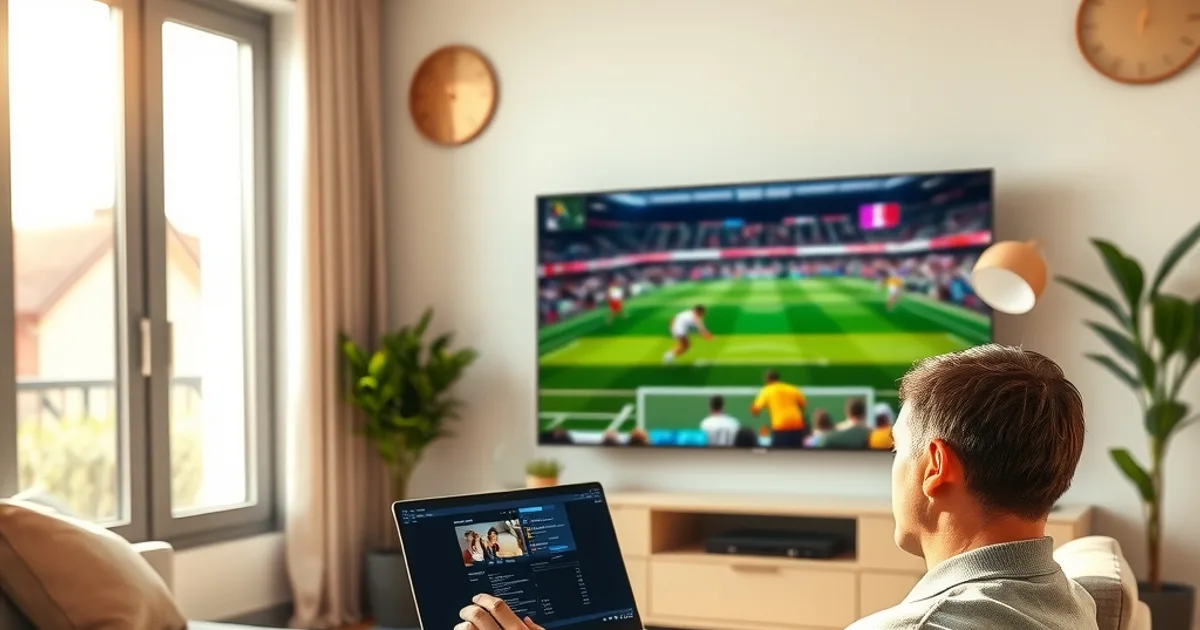
4K HDR has become the default marketing line for almost every UK IPTV service. Every landing page shows the same badge, the same glossy screenshot, the same promise of "true 4K Ultra HD". What almost none of them tell you is that a huge share of the streams behind those badges are 1080p footage stretched up to 4K resolution by the player or the box — not genuine 4K source video. The pixel count on screen says 3840×2160. The actual detail in the picture never got there.
This matters because "real 4K IPTV" and "best 4K streams" are now some of the most searched terms among UK cord-cutters, and a good number of the people typing them end up paying a premium for a resolution label rather than a picture upgrade. As more households treat IPTV as their primary TV source in 2026 rather than a backup, that gap between the marketing claim and the delivered signal is becoming a genuine trust problem for the whole industry.
The good news is that upscaling leaves fingerprints. Bitrate, codec, and frame data all tell the truth even when the resolution label doesn't. This guide shows you exactly how to read those fingerprints yourself, in under five minutes, on any stream you're already paying for or about to sign up to.
Why "Fake 4K" Is Rampant: The 1080p Upscaling Scam Explained
Upscaling isn't inherently dishonest — every 4K TV upscales lower-resolution content in real time, and it can look genuinely good. The problem is when a provider films, encodes, or re-transmits a channel at 1080p and then relabels the resulting stream as "4K" in the app or EPG, without disclosing that no extra detail was ever captured or transmitted. The resolution container is 4K; the information inside it isn't.
This happens for a simple economic reason: genuine 4K video takes roughly four times the raw pixel data of 1080p, which means far higher bitrate, more expensive encoding, and more strain on servers and last-mile bandwidth. Upscaling server-side (or letting your box do it) gives a provider a "4K" checkbox to market against competitors without paying any of that cost.
Because most viewers watch on a 4K TV that upscales everything anyway, the fake stream and a genuinely upscaled 1080p feed can look deceptively similar side by side on a small screen from a normal sofa distance — which is exactly why the scam survives. It only falls apart when you either look closely at fast motion and fine texture, or check the numbers behind the picture, which is what the rest of this guide walks you through.
Not sure if your current stream is genuine 4K or just upscaled?
Real 4K vs Upscaled: Bitrate, Codec & Frame Rate Differences
Resolution alone tells you almost nothing about picture quality — bitrate is what actually carries the detail. A 4K Blu-ray disc typically averages somewhere in the 60–100+ Mbps range. Streaming services that deliver credible 4K HDR (Netflix, and similar premium VOD platforms) generally recommend around 15–25 Mbps of sustained bandwidth for their 4K tier, using efficient modern codecs. A stream claiming 4K but sitting at 6–10 Mbps almost certainly started life as 1080p — there simply isn't enough data in that pipe to describe four times the pixels with real detail.
Frame rate consistency is the second tell. Genuine live 4K sports and broadcast feeds hold a steady frame rate under motion. Upscaled feeds frequently show judder, ghosting, or macroblocking exactly when the camera pans fast — a football through-ball or a fast break in basketball is the easiest real-world test, because upscaling algorithms struggle hardest with motion, not static shots.
Texture is the third giveaway: real 4K reveals fine detail that 1080p physically cannot capture — individual blades of grass on a pitch, fabric weave on a pundit's jacket, distinct strands of hair. Upscaled footage shows smooth, slightly soft edges around fine detail because the algorithm is inventing pixels rather than displaying pixels that were actually filmed. We measured exactly this kind of gap across real UK connections in our own hands-on IPTV bitrate test, and the pattern was consistent: label says 4K, bitrate says otherwise.
HEVC (H.265) vs H.264: Why Your Provider's Codec Choice Matters
Codec is the compression format doing the heavy lifting, and it changes what a given bitrate can actually deliver. HEVC (H.265) is roughly twice as efficient as the older H.264 standard, meaning a well-encoded HEVC stream can match H.264 picture quality at around half the bitrate. This is why codec and bitrate have to be read together, never separately.
A provider running genuine 4K over efficient HEVC encoding can legitimately deliver a strong picture at a lower bitrate than a provider still using H.264 for the same content — so a lower number on its own doesn't automatically mean fake 4K. What it does mean is that the bitrate floor for "credible 4K" shifts depending on codec: expect noticeably higher minimums on H.264 streams, and treat very low bitrates on either codec as a red flag worth testing further.
Most IPTV apps and set-top boxes will show you the active codec in a stream info or "more info" overlay during playback — look for HEVC, H.265, AVC, or H.264 in that panel. If your provider can't tell you which codec their 4K channels use, or the app hides this information entirely, that opacity is itself worth noting.
How to Test Any IPTV Stream: Bitrate Calculator, Resolution Checker & Live Testing
You don't need specialist equipment to check a stream yourself. On a computer, open the channel's stream URL in VLC Media Player, then go to Tools > Codec Information (or Window > Media Information on Mac). This panel shows the exact resolution, codec, and — critically — the live bitrate in kbps or Mbps that VLC is actually receiving, not what the app claims to be sending.
A free tool called MediaInfo does the same job in more depth if you have a recorded segment or downloaded sample rather than a live URL: it breaks down resolution, frame rate, codec profile, and average/peak bitrate in one readable report.
On a TV or streaming box without VLC access, most premium IPTV apps expose a stream-info overlay — usually triggered by a long-press or an info button during playback — that shows resolution and sometimes bitrate directly. If your box or app hides this entirely, that's itself informative: legitimate real-4K providers generally have nothing to hide from a curious subscriber.
Run the test during a fast-motion scene (sport, action, a panning shot) rather than a static talking-head shot — upscaling artefacts and bitrate strain both show up hardest under motion, which is when a fake 4K stream is most likely to reveal itself.
UK Providers Caught Red-Handed: Which Services Deliver Real 4K (And Which Don't)
We're not going to name-and-shame specific brands here without re-running the bitrate test on their current live streams — labels change, providers switch backend suppliers, and a result from six months ago may no longer be accurate today. What we can tell you is the pattern that shows up consistently across the UK IPTV market when you actually run the numbers.
Providers that stream real 4K almost always advertise it with specifics: named source (satellite feed, official broadcast partner, own capture), codec used, and a realistic bandwidth requirement well above what 1080p needs. Providers relying on upscaling tend to market 4K purely as a badge or a checkbox, with no technical detail behind it and no distinction in stated bandwidth requirements between their "HD" and "4K" tiers — a dead giveaway, since real 4K should demand noticeably more bandwidth than HD, not the same amount.
The most reliable move before subscribing to any UK IPTV service on the strength of its 4K claim is to request a trial stream and run the VLC test above on a genuinely 4K-source channel (a major live match is the best stress test) before committing to a paid plan.
Minimum Internet Speed for Genuine 4K: The 30 Mbps Myth Busted
A lot of UK households assume that any connection above roughly 30 Mbps is "enough for 4K", because that number gets repeated everywhere. In practice it's the wrong way to think about the requirement. What matters is stable, sustained throughput at the moment of playback — a 30 Mbps plan sharing a household with several other 4K devices, video calls, and background downloads can easily dip below what a genuine 4K IPTV stream needs, causing buffering that a provider will happily blame on "your internet" rather than their encode.
As a working rule: budget headroom above the stream's actual bitrate, not just above some generic minimum. If a provider's genuine 4K channel runs at 25 Mbps peak, you want meaningfully more than that available and free at the exact moment you're watching, not just nominally subscribed to.
We go through exact numbers, Wi-Fi vs Ethernet differences, and how to test your real available throughput (not your advertised plan speed) in our dedicated IPTV internet speed requirements guide for the UK — worth reading alongside this one before you troubleshoot buffering as a device problem when it's actually a bandwidth one.
Stop paying for a resolution label — compare plans built around real, tested streams.
Roku, Fire TV, Apple TV: Which Devices Actually Support True 4K
Even a genuinely real 4K stream needs a device capable of decoding and outputting it, and here the picture across popular UK streaming boxes is mixed. Entry-level Fire TV Stick and lower-tier Roku models are HD-only or limited to lower 4K frame rates — plugging a real 4K stream into one of these won't upscale a fake, but it will also silently cap a genuine 4K signal down to something the device can handle, without necessarily telling you.
Higher-tier boxes — 4K-specific Fire TV models, Roku Ultra/Streaming Stick 4K, and Apple TV 4K — decode HEVC properly and support the higher bitrates real 4K needs, alongside HDR passthrough where the source actually has it. Nvidia Shield remains a strong option here too for power users who want more control over playback and codec handling.
We compared exactly this trade-off in detail in our Nvidia Shield vs Apple TV for IPTV breakdown, and separately covered practical setup for watching Premier League matches on Roku — both worth checking if you're deciding which box to pair with a provider you've already verified for genuine 4K.
Frequently asked questions
Can I tell fake 4K just by looking at the picture on my TV?
Sometimes, but not reliably. On a normal sofa viewing distance, an upscaled 1080p stream on a good 4K TV can look close enough to real 4K that most people won't spot it by eye alone, especially in static scenes. Fast motion (sport, action) and fine texture (grass, fabric, hair) are where the difference becomes visible — but a bitrate and codec check is far more conclusive than eyeballing it.
Does HEVC always mean a stream is real 4K?
No. HEVC (H.265) is just a more efficient compression format — it can carry genuine 4K at a lower bitrate than H.264, but it can just as easily carry an upscaled 1080p source. Codec tells you how efficiently the data is compressed, not whether the original source actually had 4K detail in it. You need to check codec and bitrate together.
What bitrate should I look for to trust a 4K IPTV stream?
There's no single universal number because it depends on codec and content type, but as a rough guide, sustained bitrate well below what modern 4K streaming services recommend for their own 4K HDR tier (commonly cited around 15–25 Mbps) is a strong sign the source isn't genuine 4K, especially on live sport with fast motion.
Is upscaling illegal or is it just poor marketing?
Upscaling itself isn't illegal — TVs and boxes do it constantly and it's a normal part of how lower-resolution content gets displayed on 4K screens. The issue is transparency: labelling an upscaled 1080p stream as "4K" without disclosure is a marketing and trust problem, not a technical crime, but it's exactly the kind of practice that erodes confidence in the whole IPTV market.
Will a faster internet connection fix a fake 4K stream?
No. If the source content itself was only ever 1080p, no amount of extra bandwidth adds real detail that was never captured — you'll just get a more stable stream of the same upscaled picture. Faster internet only helps with buffering on a stream that's actually genuine 4K but currently starved of bandwidth.
How do I test a stream before I commit to a paid IPTV subscription?
Ask for a trial or a short-term test period, then run the VLC codec-information check on a live sports channel during a fast-motion moment. Compare the resolution, codec, and live bitrate against the ranges covered in this guide. A provider confident in genuine 4K quality should have no issue with you testing before you pay.
Next, see the subscriptions or the FAQ.