IPTV Internet Speed Requirements UK: 4K & HD Guide 2026
8 August 2026 · 9 min read
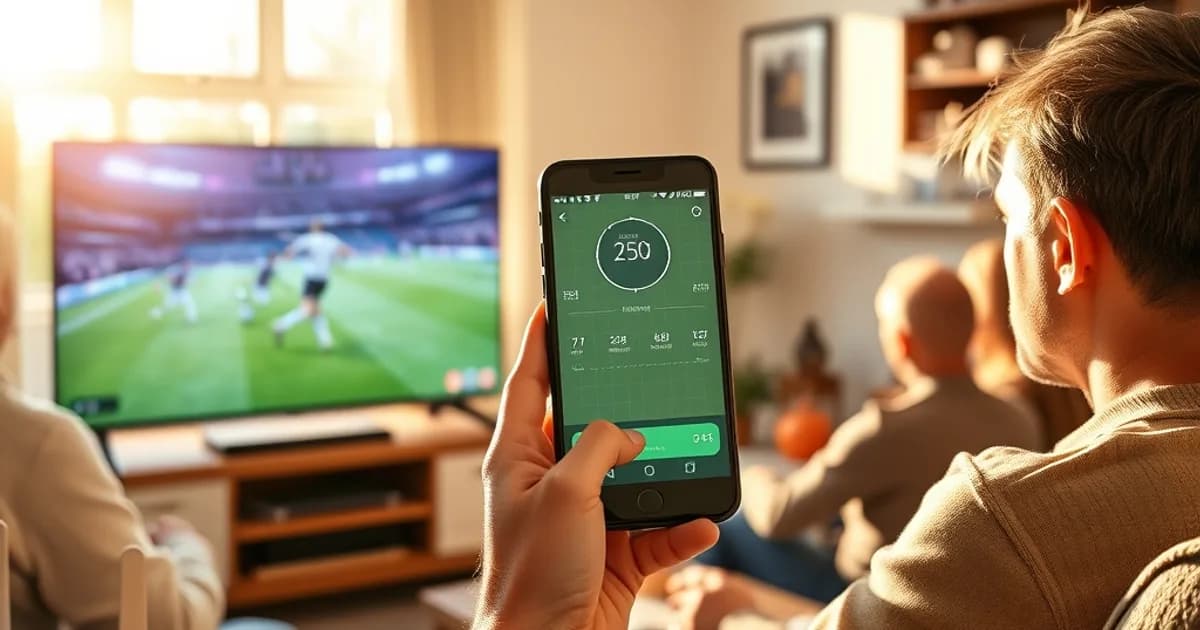
The Premier League season kicks off on Friday 21 August, and the summer transfer window slams shut a week and a half later, on 1 September. That means two things are happening in UK households right now: people are signing up for IPTV services, and a lot of those same people are about to find out — the hard way, mid-match — whether their broadband can actually keep up.
Most speed guides answer this with a single generic number: "you need 25 Mbps for 4K." That's not wrong, but it's not useful either, because it ignores what actually breaks a stream on a Saturday afternoon: your teenager's Xbox downloading an update in the background, three phones on the same WiFi, a router stuck in a cupboard two rooms from the TV, or a Premier League broadcast spiking to nearly double its average bitrate during a fast counter-attack.
This guide maps real Mbps numbers to real viewing scenarios — solo HD in the kitchen, 4K in the living room during a title race, a household split across four screens for a Saturday 3pm kick-off — and tells you exactly what to check and what to fix if your line falls short before the season starts.
Speed Requirements by Quality Tier
IPTV streams are delivered at a fairly constant bitrate, so the Mbps figures below are the sustained speed your connection needs to hold for the length of a match, not just a burst at the start of a stream.
| Quality | Typical bitrate | Recommended line speed | Real-world scenario | |---|---|---|---| | SD | 1–3 Mbps | 5 Mbps | One device, casual viewing, tolerant of some softness in fast motion | | HD (1080p) | 5–8 Mbps | 15–20 Mbps | One device watching a full 90 minutes without buffering, including replays and stat overlays | | 4K | 15–25 Mbps | 40–50 Mbps | One 4K stream running cleanly through a full match, with headroom for the bitrate to spike during high-motion play | | 4K + second device | 25–40 Mbps combined | 75–100 Mbps | Football on the main TV in 4K while someone else streams HD upstairs |
That "recommended line speed" column is deliberately higher than the raw bitrate. Live sport isn't a flat, predictable stream — a fast breakaway or a packed penalty box pushes far more motion data through the pipe for a few seconds than a static wide shot of the pitch. If your plan is priced right at the bitrate minimum, those spikes are exactly when you'll see the picture stutter or drop to a lower resolution automatically. Build in at least 40–60% headroom above the stated bitrate, especially for 4K.
Upload speed matters less for watching, but it isn't irrelevant — most UK ISPs bundle a modest upload allowance with standard broadband packages, and a saturated upload channel (from a cloud backup running in the background, for example) can still add jitter to your download stream on the same connection.
Not sure if your connection can handle 4K football? Ask us before kick-off.
How to Run a Speed Test
Before the season starts is the right time to test, not during the first big match when everyone else on your street is also streaming. Run the test on the actual device you watch on — a smart TV app result and a phone result over the same WiFi can differ noticeably.
Ookla's Speedtest (web or app) and Fast.com are the two most reliable general-purpose tools; both report download, upload and latency in under a minute. For a result that's specific to how your IPTV app behaves — not just your raw broadband speed — our full walkthrough at /blog/iptv-bitrate-test-uk covers how to test the actual stream bitrate your app is pulling, which is a more direct predictor of buffering than a generic speed test.
Test at the time you'll actually be watching. A line that reads 90 Mbps at 11am on a Tuesday can behave very differently at 5pm on a Saturday when the whole street is home from work and school. If you can, run the test twice: once mid-morning as a baseline, and once during the closest equivalent to matchday conditions — early evening, multiple devices active.
Reading Your Speed Test Results
Download speed is the headline number and the one most people fixate on, but it's only one of four figures that determine whether a stream stays smooth.
Upload speed rarely bottlenecks watching directly, but a heavily loaded upload channel (video calls, cloud sync, a smart doorbell uploading clips) shares router and line resources with your download stream, and can indirectly cause hiccups.
Latency (ping) is the round-trip delay between your device and the server, measured in milliseconds. For on-demand content it's barely noticeable. For live sport, high latency is what causes that awkward gap where your neighbour's shout of "GOAL" reaches you through the wall before it happens on your screen.
Jitter is the variation in that latency from one moment to the next. A connection can have decent average latency but bad jitter — and jitter is often the real cause of a stream that buffers unpredictably even though your download speed test looked fine. Anything consistently under 20-30ms jitter is solid for live streaming; spikes above that are worth investigating.
WiFi vs. Wired: Why Connection Type Matters for Live Sports
A wired Ethernet connection to your streaming device removes an entire layer of variability: no interference from neighbours' routers, no signal drop from walls or distance, no competing 2.4GHz traffic from smart-home devices. For a 4K stream during a title-race match, this is the single highest-impact fix available to most households, and it costs nothing but a cable.
If wired isn't practical, a 5GHz WiFi connection is meaningfully more stable than 2.4GHz for streaming — higher throughput, less congestion, though shorter range. Powerline adapters (which carry your network signal over your home's electrical wiring) are a solid middle ground when running a cable isn't realistic, and they're often more consistent for live streaming than mesh WiFi extenders, which can introduce their own handoff delays.
For setup specifics on getting a stable connection into your streaming device, our guide at /blog/iptv-uk-firestick-setup-guide walks through the wired and WiFi options step by step, including where router placement quietly sabotages otherwise-good broadband.
Peak Hours & Multi-Device Impact
Your ISP's advertised speed is a best-case figure. UK broadband typically slows somewhat during peak hours — roughly 6pm to 10pm on weeknights, and Saturday afternoons around the traditional 3pm kick-off slot — as everyone on the local network segment is online at once. This is precisely when most Premier League matches are watched.
Multi-device households need to plan for combined, not individual, bandwidth. A common Saturday scenario: 4K football on the living room TV (up to 25 Mbps), a phone streaming HD in the kitchen (5-8 Mbps), a games console downloading updates in the background (variable, often high), and a laptop on a video call upstairs. Add those up and a 50 Mbps line that looked comfortable for one 4K stream is suddenly tight.
If you regularly watch on mobile away from home WiFi — checking a Premier League match on a train or at work — mobile data speeds and caps introduce their own constraints; our setup notes at /blog/watch-premier-league-on-iphone-iptv-setup cover what to expect and how to keep data usage under control without sacrificing picture quality.
If Your Speed Falls Short: Practical Fixes
If your test results land below the recommended figures for the quality tier you want, there are several fixes worth trying before assuming you need a new broadband contract.
Switch to a faster DNS resolver — this won't increase your raw bandwidth, but it can reduce lookup delays that add to perceived buffering, particularly at the start of a stream. Move your router out of a cupboard or behind the TV and into open space, ideally elevated and central to the home — physical placement is one of the most underrated fixes for WiFi-based streaming. Pause other high-bandwidth activity during a match — game console downloads and cloud backups are the two most common silent bandwidth thieves.
If you're using a VPN, be aware it adds real overhead — typically a 10-20% throughput reduction plus a small latency increase, more if the server is geographically distant. If your connection is already close to the minimum for your quality tier, a VPN can be the difference between smooth and stuttering. Our breakdown at /blog/iptv-isp-throttling-detection-fix explains how to tell whether your ISP is actually throttling streaming traffic specifically (which a VPN can sometimes work around) versus a genuine capacity shortfall (which it can't).
If none of that closes the gap, the honest fix is dropping to a lower quality tier rather than fighting a losing battle against your line speed — HD football that plays smoothly beats 4K football that buffers through the winning goal.
Latency & Jitter for Live Sports
On-demand content tolerates latency fine because your device buffers ahead of what you're watching. Live sport doesn't have that luxury — every extra millisecond of round-trip delay is a millisecond further behind real time, and it's the reason some viewers hear a goal celebrated outside before they see it happen on screen.
Jitter is the more disruptive of the two for streaming quality specifically. A steady 40ms latency is far less noticeable than a connection that swings between 15ms and 90ms every few seconds, because that variability is what forces your player to keep rebuffering to protect against dropped packets. Wired connections and 5GHz WiFi both reduce jitter significantly compared to congested 2.4GHz WiFi.
There's no universal magic number, but as a working benchmark: under 50ms latency and under 30ms jitter is comfortable for live sport; above roughly 100ms latency or highly variable jitter is where viewers typically start noticing lag or stutter during fast-moving play.
Get a quality tier that actually matches your household's real connection speed.
Future-Proofing Your Setup
8K broadcast content is not yet a realistic mainstream consideration for UK sport — the bandwidth and encoding standards required are still years from typical home use, so there's no need to over-provision for it today.
The more practical future-proofing question is multi-device 4K: as more households own more than one 4K-capable screen, the combined household bandwidth needed to run two 4K streams simultaneously (roughly 50-80 Mbps once headroom is included) is becoming a more common real-world requirement than any single-stream 4K figure. If you're choosing a broadband package now, sizing for "two 4K streams plus normal household use" rather than "one 4K stream" will age better.
Beyond raw speed, the router itself matters increasingly as device counts grow — a router that's a few years old may cap out on simultaneous connections well before your ISP-rated speed is the bottleneck. If you're weighing which IPTV service and setup fits your household's actual viewing pattern, our comparison guide at /blog/best-iptv-uk-how-to-choose looks at this alongside device compatibility and reliability, not just headline speed numbers.
Frequently asked questions
What's the minimum internet speed for IPTV in HD?
A 1080p HD stream typically needs 5-8 Mbps of sustained bitrate, but we'd recommend a line rated at 15-20 Mbps to give headroom for bitrate spikes during fast-moving action and for any other devices sharing the connection.
Do I need a 4K broadband package to watch Premier League football in 4K?
You need a connection that reliably delivers 40-50 Mbps to your streaming device during peak viewing times, which is more about consistency than the headline speed on your contract. A package advertised at 50 Mbps that actually holds that speed at 5pm on a Saturday is more useful than a 100 Mbps package that drops sharply under local network congestion.
Why does my IPTV stream buffer even though my speed test shows a fast connection?
Speed tests measure a short burst to a nearby test server, not sustained real-world streaming performance. Jitter, latency, WiFi interference, and other devices on your network competing for bandwidth at the moment you're watching can all cause buffering that a one-off speed test won't reveal — testing at matchday peak times gives a more accurate picture.
Is WiFi good enough for 4K IPTV, or do I need a wired connection?
5GHz WiFi can handle 4K streaming well in most homes, but a wired Ethernet connection removes interference and congestion entirely and is the more reliable option for a demanding live sports stream, particularly in a household with several devices online at once.
Does using a VPN slow down IPTV streaming?
Yes, typically by around 10-20%, plus a small increase in latency, more if you connect to a distant server. If your connection is already close to the minimum needed for your quality tier, that overhead can be enough to push you into buffering.
How many devices can stream IPTV at once on a normal UK broadband connection?
It depends entirely on combined bandwidth rather than device count — one 4K stream plus one HD stream plus general browsing can need 50-80 Mbps in total once headroom is factored in, so the honest answer is to add up each device's tier requirement rather than rely on a fixed number.
Next, see the subscriptions or the FAQ.