IPTV on iPad & MacBook 2026: Apple Device Setup Guide
15 September 2026 · 9 min read
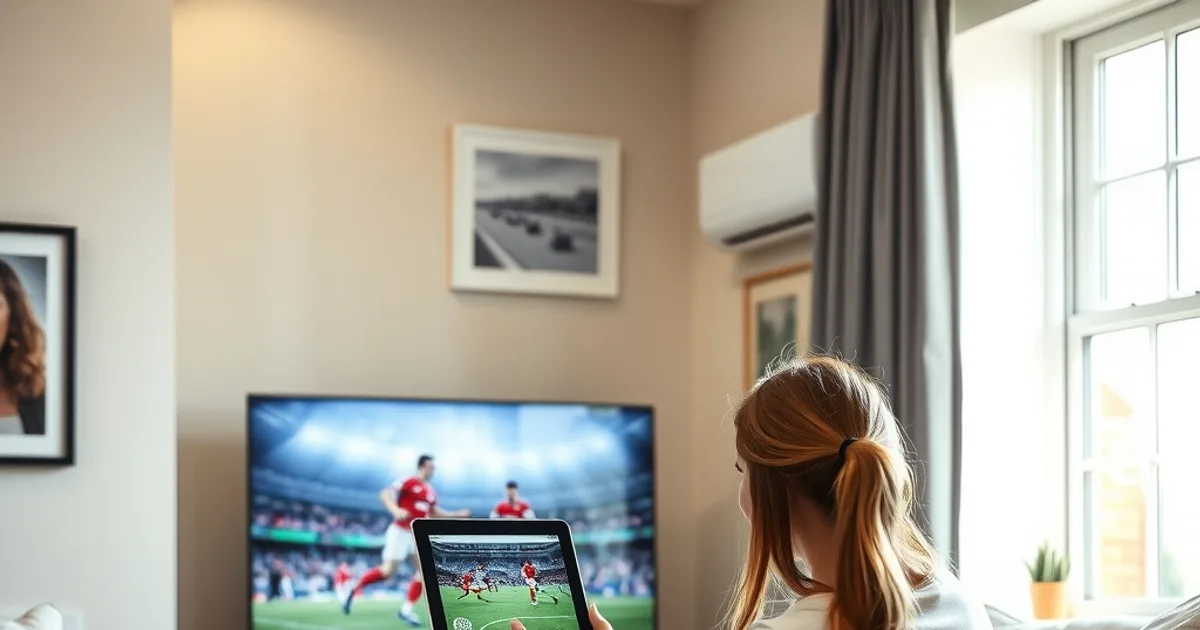
Most IPTV setup guides are written for Fire TV Stick, Roku, or Android TV boxes, with Apple devices squeezed into a generic 'iPhone' paragraph as an afterthought. That leaves a lot of value on the table, because an iPad or MacBook is genuinely one of the best ways to watch IPTV: sharper screens than most budget TV boxes, a smoother app experience, and a built-in way to throw the picture onto a bigger screen without buying extra hardware.
September 2026 combines three timing drivers: Premier League 2026-27 season underway, back-to-school device purchases at peak, and Apple's typical Sept-Oct product announcement cycle (iPad Pro, MacBook Air refresh likely). UK Apple users are searching for ways to maximise their devices during football season, and most are getting answers written for someone else's hardware.
This guide is built specifically for iPad, iPhone, and MacBook owners in the UK: which apps actually work well on iOS and macOS, how to set up AirPlay for live football without lag, how to get the most out of a 4K screen, and what to do when a match starts buffering right as kickoff hits.
Why iPad and MacBook for IPTV: portability, screen quality, and ecosystem advantages
A Fire TV Stick or Android box is fixed to one television. An iPad isn't. You can watch a Saturday 3pm kick-off in the kitchen, move to the garden at half-time, and finish the match in bed — the same app, the same session, no re-pairing anything. That portability is the single biggest practical advantage Apple hardware has over a dedicated streaming box, and it's the reason iPad ownership skews so heavily toward people who actually want to watch sport on their own schedule.
Screen quality is the second advantage, and it's underrated. A recent iPad's display outperforms the panel in most budget smart TVs on colour accuracy and brightness, which matters more than people expect for IPTV specifically, since compressed streams show banding and colour noise more visibly on a weak panel. MacBook screens go a step further for anyone doing multi-tasking — checking a live score ticker or fantasy football app in a side window while the match plays.
The ecosystem tie-together is the part competitor guides miss entirely. Once IPTV is set up on one Apple device, moving it to another is close to instant: the same app, the same account, iCloud keychain carrying saved credentials across iPad, iPhone, and Mac. That's a genuinely different experience from setting up a Firestick from scratch in every room.
Not sure which app fits your iPad or MacBook setup?
Best IPTV apps for iOS & macOS: Smarters Pro, GSE, and sideload options tested on UK networks
The two apps that consistently perform best on iPad and iPhone are IPTV Smarters Pro and GSE Smart IPTV, both available directly on the App Store, both supporting Xtream Codes and M3U playlist formats. Smarters Pro has the cleaner interface and better EPG (electronic programme guide) handling, which matters if you're tracking multiple Premier League fixtures across different channels on the same afternoon. GSE is more configurable — useful if you want manual control over buffer size and playback engine, which helps on inconsistent UK broadband.
On macOS, the same two apps run natively on Apple Silicon MacBooks via the App Store, so there's no need to sideload anything or fight Gatekeeper warnings. VLC is worth having installed regardless, since it remains the most reliable fallback for playing an M3U playlist directly if an app update ever breaks compatibility.
Whichever app you choose, pair it with our comparison of TiviMate vs Smarters at /blog/best-iptv-apps-uk-tivimate-vs-smarters-2026 before committing — TiviMate isn't available on iOS/iPadOS, so Apple users need to know upfront that Smarters or GSE are the realistic choices, not a compromise.
Setting up IPTV on iPad: M3U import, Xtream Codes, app permissions, and first-run optimization
After installing your chosen app from the App Store, you'll add your service either as an Xtream Codes login (server URL, username, password) or as a direct M3U playlist URL. Xtream Codes is the smoother option on iPad because it loads a structured EPG and category list automatically, rather than a flat channel dump.
On first launch, grant the app local network permission when iOS asks — this is required for the app to reach your router properly and is a common cause of channels failing to load on a fresh install. Also check that Low Power Mode is off during setup; iPadOS throttles background network activity aggressively in that mode, which can make an otherwise fine connection look broken.
Before committing to a paid plan, it's worth testing the service properly first. Our guide at /blog/iptv-trial-uk-how-to-safely-test walks through how to run a short trial without exposing payment details you don't need to share, and what to actually check during that window — peak-time buffering, channel stability, and EPG accuracy — rather than just whether the picture loads once.
Streaming to your TV: AirPlay setup, latency testing, and why it beats casting alternatives for sports
AirPlay is the single biggest reason an iPad beats a phone-only setup for watching football on the big screen. If your TV has AirPlay 2 built in (most sets sold since 2019 do) or you have an Apple TV box, swipe to open Control Centre, tap Screen Mirroring, and select the TV. The IPTV app keeps playing exactly as it was on the iPad, just mirrored — no separate casting protocol to configure.
The catch worth knowing before kickoff: AirPlay adds a small amount of latency compared to watching directly on the iPad screen, typically in the range of a second or two depending on your Wi-Fi setup. That's rarely noticeable for a normal match, but if you're in a room with someone watching the same game on a different delay — a neighbour's TV audio, a radio commentary — you may hear the reaction before you see it. Wired Ethernet on the router side and a 5GHz or Wi-Fi 6 connection on the iPad minimise this gap.
AirPlay also handles a subtlety that generic Chromecast guides don't: it mirrors the exact stream your app is decoding, so any resolution or bitrate settings you've configured in the IPTV app carry over to the TV output. There's no separate re-encoding step, which is part of why AirPlay tends to look sharper for live sports than casting from an Android phone.
MacBook as an IPTV device: when to use it, VLC/web player options, and connecting to external displays
A MacBook makes the most sense for IPTV in two situations: watching at a desk where a second screen is already set up, or as a fallback when the TV or iPad app is unavailable. Smarters Pro and GSE both run natively on Apple Silicon Macs, and VLC remains the simplest option if you just need to play an M3U link without installing a dedicated app.
For external displays, a MacBook connects the same way any other video source does — HDMI via USB-C adapter, or AirPlay to a compatible TV using the same Screen Mirroring option found on iPad. The advantage over a TV box here is resolution flexibility: macOS lets you set the external display to match the panel's native resolution exactly, avoiding the scaling artefacts that some budget TV boxes introduce when upscaling a 1080p stream to a 4K panel.
One practical note: unlike iPad, a MacBook won't sleep-lock the way iOS does, so background tabs and other apps competing for bandwidth are more likely to be the cause of stutter on a Mac than on a tablet. Closing unnecessary browser tabs before a match starts is a simple fix that's easy to overlook.
Optimizing for 4K and live sports: resolution, bitrate, WiFi 6 integration, and limiting battery drain
Most IPTV services offer channels in a range of resolutions per stream, and higher isn't always better on Wi-Fi. For live football specifically, a stable 1080p stream with consistent bitrate beats a 4K stream that has to drop frames to keep up — the eye tolerates lower resolution far better than it tolerates stutter during a fast-moving passage of play. In Smarters Pro and GSE, you can usually set a preferred stream quality per channel or provider category in settings.
If your router supports Wi-Fi 6, put the iPad or MacBook on the 5GHz or 6GHz band rather than 2.4GHz — the throughput headroom matters far less than the reduced interference, which is what actually causes the momentary freezes during a match rather than full buffering. For a full breakdown of what bandwidth an IPTV setup actually needs at home, see /blog/iptv-internet-speed-requirements-uk-2026.
On battery: streaming 4K over Wi-Fi for a 90-minute match plus stoppage time is genuinely demanding on an iPad's battery. Lowering screen brightness, keeping the device plugged in for anything beyond a single half, and closing the EPG guide overlay when not needed (it keeps redrawing in the background on some apps) all meaningfully extend a session without touching stream quality.
Troubleshooting on Apple devices: app crashes, peak-hour buffering, and ISP throttling specific to iOS/macOS
App crashes on iOS are usually a memory issue rather than a network one — background apps holding onto RAM while an IPTV app tries to buffer video. A full restart (not just closing the app) clears this more reliably than force-quitting alone. On macOS, repeated crashes are more often tied to an outdated app build; both Smarters Pro and GSE push App Store updates that can meaningfully improve stream stability.
Buffering that appears specifically during peak hours — typically weekday evenings and big Saturday kick-offs — is more often your ISP's network congestion or active throttling than a fault with the IPTV service itself. This is a UK-wide pattern, not an Apple-specific one, but it's worth ruling out properly rather than assuming the app is broken. Our guide at /blog/iptv-isp-throttling-detection-fix explains how to test for throttling specifically and what to change on your end versus what to raise with your provider.
One iOS/macOS-specific check worth doing first: both platforms have Low Data Mode / Low Power Mode settings that silently cap background network throughput, and it's easy to leave one switched on after a flight or a low-battery moment. Confirming both are off is a thirty-second check that resolves a surprising number of 'random' buffering reports on Apple hardware.
Ready to set up IPTV properly across your Apple devices this season?
Multi-device family setup: sharing one IPTV subscription across iPad, MacBook, iPhone, and Apple TV
One of the clearest advantages of the Apple ecosystem for IPTV is how naturally one subscription spreads across a household's devices. The same Xtream Codes login can be entered into Smarters Pro on an iPad, an iPhone, and a MacBook, and — separately — into an Apple TV box, letting different family members watch different channels in different rooms depending on how many simultaneous connections your plan allows.
This is where it's worth understanding exactly what 'multi-screen' means for an IPTV subscription before assuming every device works at once — the limit is on simultaneous streams, not on how many apps you install. Our explainer at /blog/iptv-multi-screen-uk-one-subscription-explained breaks down how that actually works and how to plan a household setup around it.
For anyone still comparing whether IPTV makes financial sense against a traditional pay-TV package for the season ahead, /blog/iptv-vs-sky-sports-cable-cost-comparison-2026 and /blog/best-legal-iptv-subscription-uk-2026 are the two most relevant starting points before locking in a provider.
Frequently asked questions
Does IPTV work on iPad without jailbreaking?
Yes. Every mainstream IPTV app — Smarters Pro, GSE, and others — is available directly on the App Store and requires no jailbreak or sideloading. Jailbreaking an iPad for IPTV isn't necessary and only adds security risk for no real benefit.
Can I use AirPlay to watch IPTV on a TV that isn't a Smart TV?
You need either an AirPlay 2-compatible TV or an Apple TV box connected to the TV. Without one of those, AirPlay has nothing to mirror to, and you'd need an HDMI cable from the iPad or MacBook instead.
Is a MacBook or an iPad better for watching Premier League matches via IPTV?
For casual, move-around-the-house watching, the iPad wins on portability. For a fixed desk setup with a second screen already in place, a MacBook is equally capable and adds the convenience of running other apps alongside the stream.
Why does my IPTV app buffer more on iPad Wi-Fi than on my phone's mobile data?
This is almost always a home network issue rather than the app itself — Wi-Fi interference, an overloaded 2.4GHz band, or ISP congestion at peak hours. Switching the iPad to 5GHz or 6GHz Wi-Fi and checking for throttling usually resolves it; see the troubleshooting section above.
Do I need a separate IPTV subscription for my iPad and my Apple TV?
No — one subscription typically covers multiple devices, limited by how many simultaneous streams your plan allows rather than how many apps you install. See our multi-screen explainer linked above for details.
Will a new iPad Pro or MacBook Air announced this autumn change IPTV performance?
A newer chip and display can improve decoding efficiency and screen quality slightly, but the biggest factors for IPTV performance remain your home Wi-Fi and the app you choose — not the specific Apple device generation.
Next, see the subscriptions or the FAQ.