Multi-Device IPTV Setup 2026: Stream 4K Premier League on 3+ Screens
13 August 2026 · 9 min read
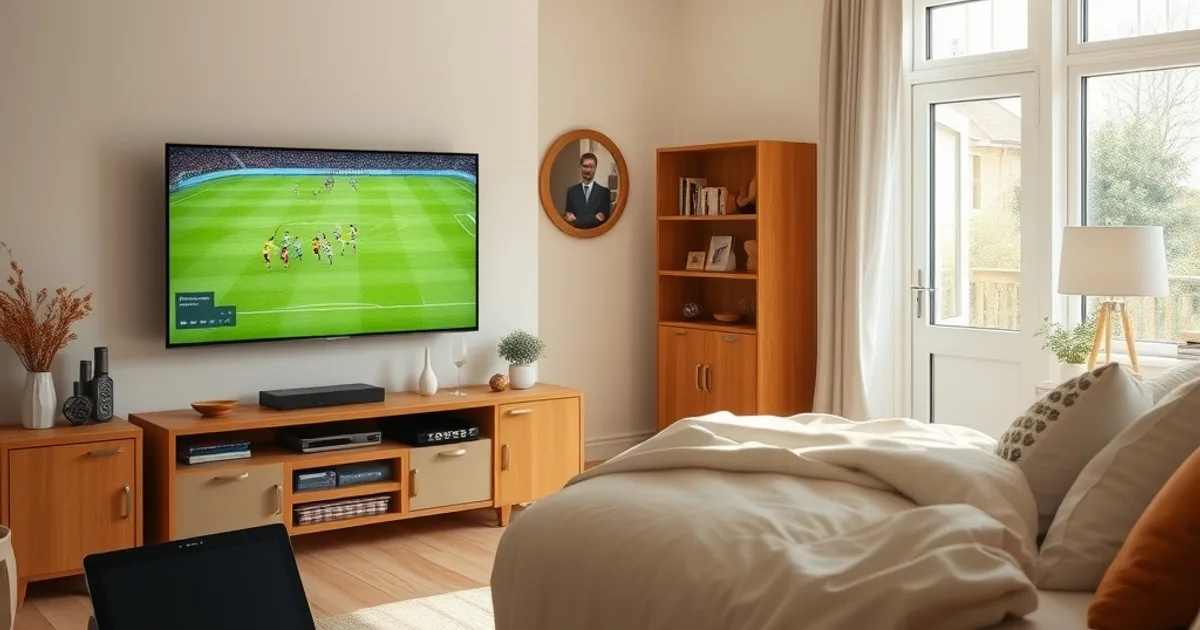
The 2026/27 Premier League season kicks off on Friday 21 August, and this year the fixture list is running one week later than usual to leave a proper gap after the FIFA World Cup 26 final — which means the whole household has had all summer to get used to the idea of watching football together, in different rooms, at the same time. Living room on the big screen, kitchen on a tablet propped against the toaster, upstairs bedroom on a phone. That's not a luxury setup anymore; it's what most families expect from an IPTV subscription in 2026.
The problem is that almost nobody explains how to actually make that work. Provider pages talk about "5 simultaneous connections" as if that number alone guarantees three smooth 4K streams. It doesn't. Connection limits, home bandwidth, WiFi congestion, and weak devices interact in ways that turn match day into three buffering wheels instead of three happy screens. This guide covers the setup — router placement, wired vs wireless, which devices to pair together, and what to do when your ISP starts throttling on the busiest football day of the week.
If you've already set up individual devices — a Firestick in the living room, a Roku in the kitchen, an iPhone for the kids upstairs — this is the piece that ties them together so they don't fight each other for bandwidth.
Understanding simultaneous connection limits: what "5 streams" really means
A simultaneous connection limit is a rule set on the IPTV provider's server side: it caps how many devices can be authenticated and pulling a stream from your account at the same moment. It has nothing to do with your router, your WiFi, or your internet plan — those are separate constraints layered on top. If your plan allows 3 connections and you try to open a fourth, the server will typically kick the oldest session or simply refuse the new one, regardless of how much bandwidth you have spare.
This matters because families often assume a higher connection limit automatically means better multi-screen performance. It doesn't — a plan that allows 5 streams but on a household internet connection with limited upload/download headroom will still stutter. Connection count is a permission, not a performance guarantee. Before match day, count how many screens will genuinely be active at kickoff (not "might be" — actually on) and match that to what your subscription allows, with one spare connection for a phone check or a second household member logging in unexpectedly.
One practical habit: log out of devices you're not using. Old sessions left open on a spare tablet or a previous Firestick quietly eat into your connection count and cause the exact "stream limit reached" error mid-match that looks like a provider fault but is actually just an idle device still holding a slot.
Not sure how many screens your household can realistically run at once this season?
Bandwidth requirements: how much speed for 3+ 4K devices at once
4K IPTV streams typically need a stable, sustained connection in the region of 25–40 Mbps per stream depending on the encoding the provider uses — and that's a floor, not a peak-hour aspiration. Multiply that by however many 4K screens will run at once, then add realistic headroom for everything else pulling data in the background: a laptop syncing files, a smart speaker, someone's work video call. For three simultaneous 4K streams, a household connection comfortably north of 100–150 Mbps download gives you room to breathe; anything close to the bare minimum leaves zero margin for the normal noise of a busy home network.
It's worth checking your actual measured speed, not the number on your ISP contract — contracted "up to" speeds and real-world throughput during Saturday 3pm peak hours are often very different things. We've covered how to test this properly and what UK ISPs realistically deliver on match day in our guide to IPTV internet speed requirements for the UK.
If your connection sits closer to the minimum, consider dropping one screen to HD instead of 4K during the match — a family member watching in the kitchen on a smaller tablet screen will rarely notice the difference, but it frees meaningful bandwidth for the living room's main 4K feed.
Router setup for multi-device stability: WiFi 6, channel separation, and 2.4GHz vs 5GHz
Router placement is the single most underrated fix in multi-device IPTV setups. A router tucked in a hallway cupboard or behind the TV cabinet loses signal strength fast through walls and furniture — move it to a central, elevated, open position in the home if at all possible, ideally within line of sight of the rooms where streaming devices live.
If your router supports WiFi 6 (802.11ax), use it for streaming devices — it handles multiple simultaneous connections far better than older WiFi 5 standards because of a feature called OFDMA, which lets the router serve several devices in a single transmission window instead of queuing them one at a time. This is exactly the scenario of three screens all pulling 4K streams at once, so it's worth checking whether your router (and your streaming devices) actually support it — older Firesticks and budget Android boxes sometimes don't.
Use the 5GHz band for streaming devices, not 2.4GHz. The 5GHz band offers more bandwidth and far less interference from neighbouring WiFi networks, microwaves, and baby monitors, though it has shorter range through walls. Keep 2.4GHz for low-bandwidth smart home gadgets and reserve 5GHz exclusively for anything streaming video. If your router lets you set separate channel widths or manually pick a WiFi channel, run a quick scan (most router apps include one) to find the least congested channel in your area — in dense housing like flats or terraces, channel overlap with neighbours is a common invisible cause of buffering that has nothing to do with your IPTV provider at all.
Wired vs wireless: when to use Ethernet on your 4K devices
If one device is going to carry the main event — the living room TV showing the featured match in 4K — put it on Ethernet if there's any way to run a cable. A wired connection removes WiFi contention entirely for that device: no competing for airtime with the other two screens, no signal drop from someone walking past the router, no interference from the microwave running in the kitchen mid-match.
This doesn't mean every device needs a cable. Realistically, wire the one device that absolutely cannot afford to drop — usually the main TV — and let the secondary devices (tablets, phones, a Roku in another room) run on 5GHz WiFi. This single change does more for stability during a 3+ device match than almost any other router setting, because it takes the highest-bandwidth consumer off the wireless spectrum entirely and leaves more airtime for everything else.
For homes where running a cable to the TV isn't practical, a powerline adapter (which sends network data over your home's existing electrical wiring) is a solid middle ground — not as reliable as true Ethernet, but generally steadier than WiFi through multiple walls.
Device pairing strategy: which devices bottleneck and how to avoid it
Not all streaming devices are equal, and mixing a powerful device with an underpowered one on the same match doesn't average out — the weak device just buffers on its own regardless of what the strong one is doing, since each device negotiates its own stream independently. But weak devices do have a knock-on effect: an older Firestick or budget Android box with limited processing power can struggle to decode a 4K stream cleanly, and some will silently drop to a lower bitrate or stutter while retrying, which shows up as inconsistent quality on that screen even when your bandwidth and connections are fine everywhere else.
As a rough pairing principle: put your strongest, most current-generation devices on the screens where quality matters most (the main TV via Roku or a recent Firestick), and accept that older or budget hardware in secondary rooms may be better suited to HD rather than 4K. We've written device-specific setup guides that cover exactly what each platform needs — see our guide to watching Premier League on Roku IPTV and watching Premier League on iPhone with the right IPTV setup for the configuration steps.
iPhones and iPads generally handle IPTV apps smoothly since Apple's hardware decodes video efficiently, making them reliable secondary or tertiary screens — a phone in the kitchen or a tablet in a child's bedroom is usually the least troublesome device in a multi-screen setup, not the most.
Managing ISP throttling across multiple streams on match day
Some UK ISPs apply traffic shaping — deliberately slowing certain types of data, including video streaming — especially during peak evening and weekend hours when overall network demand is highest. With three devices pulling 4K IPTV streams simultaneously on a Saturday afternoon, you're streaming at exactly the moment your ISP's network is under the most strain, which is when throttling (if your provider does it) is most likely to kick in.
Throttling and simple bandwidth shortage look identical from the couch — both show up as buffering — but the fix is different, so it's worth knowing which one you're dealing with before you start troubleshooting the wrong thing. We cover how to actually tell the difference and what to do about it in our guide to detecting and fixing IPTV ISP throttling.
On heavy match days with 3+ devices running, it's worth doing that throttling check the night before rather than discovering it at kickoff — if your ISP is shaping traffic, no amount of router optimisation will fully fix it, and you'll want to know that going in rather than blaming your IPTV provider unfairly.
Get your household set up for 3+ screens before kickoff on 21 August.
Setting up fallback devices: what to do if the main stream fails
Even with a well-optimised setup, football streams occasionally drop — a brief provider-side hiccup, a router restart, a WiFi dead spot on a bad day. With multiple devices already active in the house, the fastest recovery isn't troubleshooting the failed screen, it's having a known-good fallback ready before you need it.
Keep one device — commonly a phone, since it's always nearby and on a different network path if you switch to mobile data — set up and logged into your IPTV app in advance, tested earlier in the day, not fumbled with mid-match. If the main TV stream drops during a crucial moment, switching to the pre-tested backup takes seconds instead of the several minutes it takes to diagnose a router issue while everyone in the room is asking what happened.
It's also worth testing your full multi-device setup a day or two before a big match rather than for the first time at kickoff — start all the screens you plan to use simultaneously, let them run for 15–20 minutes, and watch for which one struggles first. That dry run tells you exactly where your setup's weak point is while there's still time to fix it, rather than finding out live during Arsenal vs Liverpool.
Frequently asked questions
How many devices can realistically stream 4K Premier League football at once in a normal UK home?
Two to three 4K streams is realistic for most households with a solid broadband connection (100 Mbps+), a WiFi 6 router, and at least the main screen wired via Ethernet. Beyond three simultaneous 4K streams, most home connections and routers start to strain unless you drop some screens to HD.
Does a higher simultaneous connection limit from my IPTV provider guarantee smoother multi-device streaming?
No. The connection limit only controls how many devices are allowed to authenticate at once — it doesn't affect your bandwidth, router performance, or WiFi congestion, all of which are separate factors that determine actual stream quality.
Should I use 2.4GHz or 5GHz WiFi for multiple IPTV streams?
Use 5GHz for streaming devices whenever they're within range of the router. It offers more available bandwidth and less interference, which matters far more when multiple devices are streaming simultaneously than 2.4GHz's slightly longer range.
Is it worth running an Ethernet cable to just one device instead of all of them?
Yes — wiring the single highest-priority device (usually the main living room TV) removes the biggest bandwidth consumer from WiFi entirely, freeing up wireless capacity for the other screens. It's the highest-impact single change you can make for a mixed wired/wireless multi-device setup.
How do I know if buffering on match day is my ISP throttling me rather than a bandwidth problem?
Throttling tends to affect streaming specifically while other activities (downloads, browsing) stay fast, and it often correlates with peak evening or weekend hours regardless of how many devices you're running. A dedicated speed and throttling check, run the night before a big match, is the reliable way to tell — see our detection and fix guide for the exact steps.
What's the best backup plan if my main stream drops during a match?
Keep a second device — typically a phone, pre-logged into your IPTV app and tested earlier that day — ready as an immediate fallback. Switching to a pre-tested backup takes seconds, versus several minutes spent troubleshooting the primary device or router mid-match.
Next, see the subscriptions or the FAQ.