IPTV on Samsung Smart TV 2026: Tizen Setup, Apps & 4K Guide
6 September 2026 · 11 min read
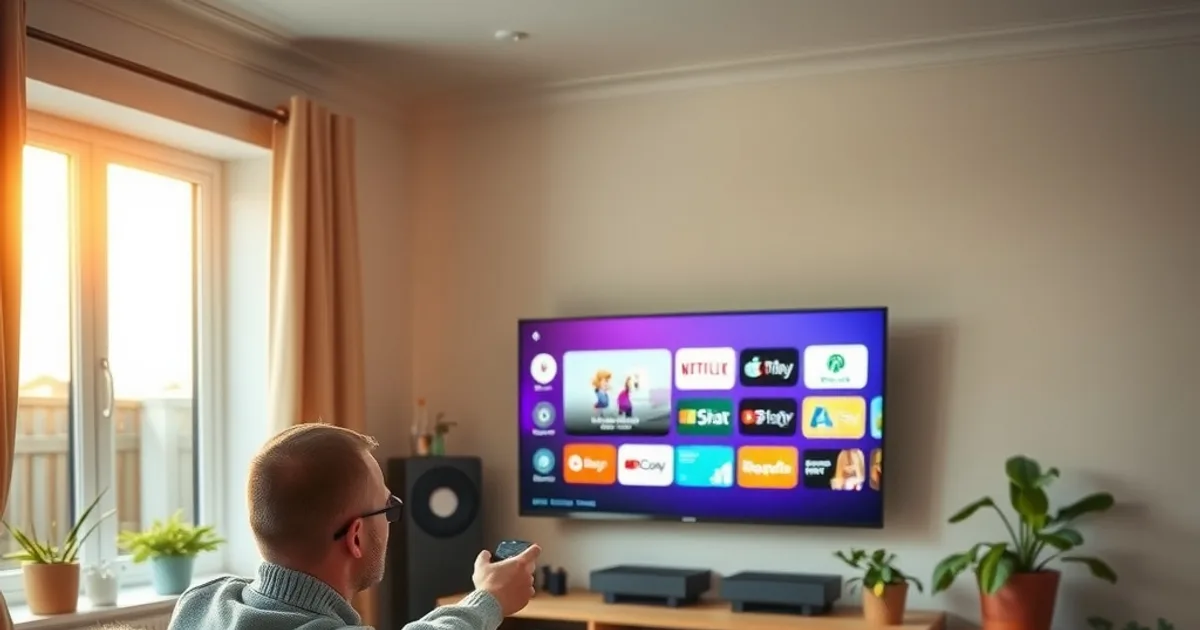
Every September the same pattern repeats: new Samsung TVs land in showrooms just as the football and rugby calendars restart, and searches for "IPTV Samsung TV" and "Smart TV IPTV setup" spike as households upgrade their living room before the autumn viewing season properly kicks off. Samsung remains the best-selling TV brand in the UK, and Tizen — its smart TV operating system — is what most of those searches are actually about, whether people realise it or not.
What's odd is how thin the coverage of it is. Type "IPTV Samsung 2026" into Google and you'll find close to a dozen sites with a dedicated Samsung Tizen walkthrough, yet plenty of otherwise solid IPTV guides jump straight from phones and Fire TV sticks to Apple TV and Nvidia Shield without ever landing on the TV brand most UK viewers actually own.
This guide fills that gap properly. We'll cover which Samsung TVs can actually run IPTV apps, which app to install for your set, how to add your playlist and EPG correctly, how to get a genuinely clean 4K picture out of a compressed stream, and what to do when the app crashes or freezes halfway through a match. If you've already got IPTV running on another device, our comparisons of TiviMate vs Smarters Pro (/blog/best-iptv-apps-uk-tivimate-vs-smarters-2026) and multi-device family setups (/blog/iptv-multi-device-family-setup-simultaneous-streams) are useful companions once your Samsung TV is sorted.
Why Samsung Smart TV Is a Legitimate IPTV Platform
A Samsung Smart TV running Tizen is a perfectly capable IPTV device in its own right, not just a screen you plug a streaming stick into. The Tizen platform has matured for over a decade, it supports the video codecs live IPTV streams typically use, and every Samsung TV sold in the last several years ships with 4K and HDR support built in — so the decoding and display pipeline is already there without adding another box under the telly.
The practical case for using the TV's own app store rather than a separate streaming device comes down to fewer cables, one remote instead of two, and one less HDMI port taken up — genuinely useful if you're also running a games console or soundbar off a limited number of inputs. It won't always outperform a dedicated Fire TV Stick or Nvidia Shield on raw processing power, particularly on older Samsung models, but for most households it removes a step rather than adding one.
The trade-off is flexibility. A Fire TV Stick or Apple TV can be replaced in minutes if it stops being supported; the smart TV platform is tied to the television itself for as long as you own it. That's worth knowing before you commit to the TV app as your only route in — it's a good default, not necessarily a permanent one.
Not sure if your Samsung model will handle 4K IPTV smoothly?
Tizen Compatibility Check: Which Samsung TVs Actually Support This
Samsung has used Tizen as its smart TV operating system since 2015, and any Samsung TV from 2016 onwards will run it in some form. That doesn't mean every app runs identically on every model, though — app store availability, update frequency and raw performance all vary by TV age and by which Tizen version your particular set shipped with.
To check what you're working with, go to your TV's Settings, then Support, then About This TV (wording shifts slightly between firmware releases, so look for anything labelled Support or Device Info if you can't find that exact path). That screen shows your software/Tizen version and lets you check for and install the latest firmware update — worth doing before installing anything, since an outdated Tizen build is one of the more common reasons an IPTV app installs but then crashes on launch.
As a rough rule: TVs from the last four to five years handle current IPTV apps comfortably, TVs from the 2016–2019 range can usually run at least one of the lighter apps but may struggle with heavier EPG grids, and anything older than that is increasingly hit-or-miss as app developers drop support for very old Tizen builds. If your TV falls into that last group, a cheap Fire TV Stick or similar plugged into HDMI will almost always be more reliable than pushing an ageing built-in app store.
Best IPTV Apps for Samsung Tizen in 2026
Three apps come up repeatedly for Samsung Tizen: Smart IPTV (often shortened to SIPTV), SS IPTV, and IPTV Smarters Pro (sometimes listed under a slightly different name depending on your region's app store). They solve the same basic problem — playing an M3U playlist with an EPG overlay — but they get there differently, and the right pick depends on how you prefer to manage your channel list.
Smart IPTV is the oldest and most widely used option on Samsung sets. It identifies your TV by its MAC address and expects you to upload or link your playlist through a companion web portal rather than typing a long URL on a TV remote, which is genuinely easier once it's set up but has an extra step the first time. SS IPTV works in a broadly similar MAC-based way and is a reasonable alternative if Smart IPTV isn't available in your TV's store.
IPTV Smarters Pro takes the more direct route: you enter your M3U or Xtream Codes details straight into the app on first launch, no separate portal required, which tends to suit people who'd rather do everything from the remote in one sitting. It also carries over the same interface many people already know from phone and Fire TV use, which matters if your household runs IPTV across several devices — see our full TiviMate vs Smarters Pro comparison at /blog/best-iptv-apps-uk-tivimate-vs-smarters-2026 for how the two leading apps stack up beyond just the Samsung side.
None of these apps are exclusive to Samsung — they're general IPTV players that happen to have Tizen builds — so whichever one you settle on, the playlist and EPG data itself carries over cleanly if you ever add a second device to the same subscription.
5-Minute Installation: IPTV Smarters Pro on Samsung TV
From the TV's home screen, open the Apps section (usually the Smart Hub or Apps icon on the bottom row of the home menu). Use the search function inside the Apps screen and type "IPTV Smarters" — if it doesn't appear under that exact name, try "Smarters Player Lite", since regional app store listings occasionally use the lighter variant instead of the full Pro build.
Select the app, choose Install, and wait for it to download — on a reasonable broadband connection this genuinely takes under a minute. Once installed, open it directly from the Apps screen rather than searching for it again; most Tizen TVs will also let you move it to the home screen's favourites row so it's one click away next time, which is worth doing if this becomes your main way of watching.
On first launch you'll be asked whether to add a playlist via URL, via Xtream Codes API login, or by loading a local file. This is the point where the whole setup either goes smoothly or gets fiddly, so before you touch that screen make sure you actually have your M3U link or your Xtream username, password and server address to hand — trying to find them mid-setup on a TV remote is the single most common reason this takes longer than it should. Our guide on realistic setup timing (/blog/iptv-setup-time-uk-how-long-should-it-take) is a useful sanity check if the process is dragging on.
Adding Your M3U Playlist or Xtream Codes Correctly
Your IPTV provider gives you access in one of two formats: a single M3U playlist URL, or a set of Xtream Codes credentials (a server/host address, a username and a password). Both do the same job — they tell the app where to pull your channel list and EPG data from — but Xtream Codes typically refreshes and updates the channel list more reliably, so use it if your provider offers both.
When entering an M3U URL on the TV, type it exactly as given, including the http:// or https:// prefix and any port number after the domain — a single missing character here is the most common cause of a playlist that loads but shows zero channels. Xtream Codes setup is generally more forgiving because it's three separate short fields rather than one long string typed on a remote.
Once the playlist loads, give the EPG (electronic programme guide) a minute or two to populate fully before assuming something's broken — channel lists often appear before the guide data catches up behind them. If channels play but show no programme information after several minutes, double-check that the EPG URL field (a separate field from the playlist itself in most apps) has been filled in, since some providers supply it separately from the main M3U link.
Optimising 4K Playback on Samsung Tizen
Samsung TVs decode HEVC (H.265) and standard H.264 streams natively, which covers the vast majority of IPTV feeds, including most 4K ones. Where playback actually falls over is usually less about the TV's decoder and more about the incoming stream's bitrate outrunning your connection — worth ruling out with a proper bitrate test (/blog/iptv-bitrate-test-uk) before assuming the app or the TV is at fault.
In the TV's own picture output settings, make sure the HDMI/output resolution isn't artificially capped — some Samsung sets default to a lower output resolution out of the box, and an IPTV app can only display as sharp a picture as the TV is set to output regardless of how good the incoming stream is. Check this under the general picture or display settings rather than inside the IPTV app itself, since it's a TV-level setting that affects every app equally.
If a specific channel consistently looks worse than others on the same subscription, that's a provider-side encoding difference between channels rather than anything to fix on the Samsung side — it's worth comparing the same channel on a phone or another device before spending time adjusting TV settings that won't change a source-side issue.
Ethernet vs Wi-Fi on Samsung TVs: Why the Cable Usually Wins
Samsung TVs are set to Wi-Fi by default from the initial setup wizard, and most people never revisit that choice once the TV is working. For 4K IPTV, that default is worth overriding if you can — a wired Ethernet connection removes an entire layer of variables (Wi-Fi interference, distance from the router, other devices competing for the same channel) that a cable simply doesn't have.
This matters more for a TV than for a phone or tablet because the TV is usually the single device asking for the most sustained bandwidth in the house at any one time — a 4K IPTV stream held steady for two hours is a very different load to a phone dipping in and out of standard-definition clips. Check your actual connection against our internet speed requirements guide (/blog/iptv-internet-speed-requirements-uk-2026) to see whether Wi-Fi is genuinely the bottleneck in your case or whether it's something else.
If running a cable to the TV isn't practical, a powerline adapter or a mesh Wi-Fi node with its own Ethernet backhaul placed near the TV gets most of the same benefit without pulling cable through walls. Either is a better fix for persistent buffering than repeatedly restarting the app, which only ever masks the underlying network limitation for a few minutes.
Get your Samsung TV set up properly and start watching tonight.
Troubleshooting: App Crashes, Buffering and Freezing on Tizen
If the IPTV app crashes immediately on opening, the two most common causes are outdated Tizen firmware and an app version that's fallen out of sync with a recent Tizen update. Check for a TV software update first (Settings > Support > Software Update), then check the app store for an update to the IPTV app itself — in that order, since updating the app on top of old firmware rarely fixes anything on its own.
For buffering that happens only during matches or peak evening hours rather than all the time, the cause is very often network congestion rather than a fault with the TV or app — either your own household's Wi-Fi getting busier in the evening, or your ISP throttling video traffic at peak times. Our guide to detecting and working around ISP throttling (/blog/iptv-isp-throttling-detection-fix) walks through how to tell the difference and what to actually do about each.
If the app freezes on a specific channel but others play fine, try force-closing it entirely (hold the Home button, select the app from the recent apps row, and close it) rather than just backing out to the menu — Tizen's app-switching doesn't always fully release memory on a simple back-out, and a genuine close-and-reopen resolves a surprising share of single-channel freezes.
As a last resort, uninstalling and reinstalling the app clears out any corrupted cache data far more thoroughly than the in-app cache-clear option some apps offer, and takes barely longer than the original five-minute install covered above. If a full reinstall still doesn't fix it, that's usually the point where the TV itself — not the app or the playlist — is the limiting factor, and pairing a Fire TV Stick or similar over HDMI is the more reliable path forward.
For related reading once your Samsung TV is running smoothly: TiviMate vs Smarters Pro (/blog/best-iptv-apps-uk-tivimate-vs-smarters-2026), bitrate testing (/blog/iptv-bitrate-test-uk), internet speed requirements (/blog/iptv-internet-speed-requirements-uk-2026), multi-device family setups (/blog/iptv-multi-device-family-setup-simultaneous-streams), realistic setup timing (/blog/iptv-setup-time-uk-how-long-should-it-take), and ISP throttling fixes (/blog/iptv-isp-throttling-detection-fix).
Frequently asked questions
Does IPTV work on every Samsung Smart TV?
Any Samsung TV from 2016 onwards runs Tizen and can technically install an IPTV app, but performance varies with age. TVs from roughly the last four to five years handle current apps comfortably; older sets may only support lighter apps or none at all, in which case a Fire TV Stick plugged into HDMI is the more reliable route.
Which app should I use for IPTV on Samsung Tizen in 2026?
IPTV Smarters Pro is the simplest to set up because you enter your M3U or Xtream Codes details directly in the app. Smart IPTV and SS IPTV use a MAC-address-based portal instead, which some people prefer for playlist management but requires an extra setup step the first time.
Can I add my M3U playlist directly on the Samsung TV remote?
Yes, most Samsung IPTV apps let you type the M3U URL directly using the on-screen remote keyboard. Xtream Codes login is generally easier to enter accurately since it's split into shorter separate fields rather than one long URL.
Why does IPTV buffer on my Samsung TV but not on my phone?
The TV usually sustains a higher, steadier bandwidth demand for longer than a phone does, so it's more exposed to Wi-Fi weak spots or peak-time network congestion. Switching the TV to a wired Ethernet connection resolves this in most cases.
Is Wi-Fi good enough for 4K IPTV on a Samsung TV?
It can be, but Ethernet removes several variables Wi-Fi doesn't — interference, distance from the router, and contention with other devices. If you're seeing buffering specifically on 4K channels, wiring the TV directly is the first thing worth trying before changing anything else.
What if IPTV Smarters Pro isn't available in my Samsung TV's app store?
Availability varies slightly by region and Tizen version, so search for "Smarters Player Lite" as an alternative listing. If neither appears, Smart IPTV or SS IPTV are widely available fallbacks that work with the same M3U or Xtream Codes credentials.
Next, see the subscriptions or the FAQ.