Watch IPTV on Windows PC 2026: Desktop Setup Guide
15 August 2026 · 9 min read
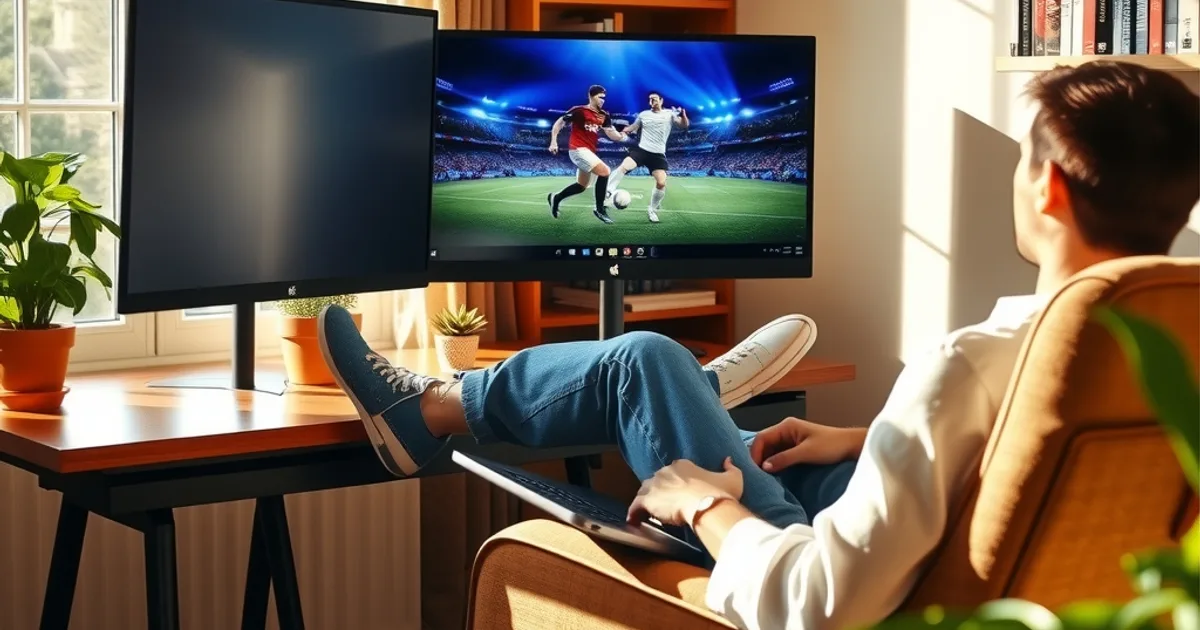
Desktop viewing gets treated as an afterthought in most IPTV coverage — nearly every guide online is written for phones, Fire Sticks, and Android boxes, as if nobody watches football on the machine already sitting on their desk. That's an odd gap, because a Windows PC is arguably the most capable device most households own for this job: proper GPU decoding, a real keyboard and mouse for browsing an EPG, a large monitor, and none of the storage ceilings that choke a cheap streaming stick after a season of caching.
With the Premier League's 2026/27 season kicking off on Friday, 21 August — Arsenal hosting newly promoted Coventry City in the traditional Friday-night opener — this is exactly the week desktop setup questions spike, and there's still no dedicated Windows guide on this site. We're closing that gap here: which player app actually fits your habits, what your PC needs to run it cleanly, and how to fix the handful of problems that account for most desktop streaming complaints.
This isn't a generic "how IPTV works" primer. It's built around the decisions a Windows user actually has to make — which player to install, whether your connection can sustain the stream you're paying for, and what to do when a channel refuses to authorize mid-match. If you're watching mainly on a phone or a Roku box instead, our guides for iPhone setup (/blog/watch-premier-league-on-iphone-iptv-setup) and Roku setup (/blog/watch-premier-league-on-roku-iptv) cover those paths directly.
Why Watch IPTV on a Windows PC?
A phone screen is fine for a lunch-break highlight, but it's a poor primary device for a 90-minute match, and a streaming stick or Android box tends to be the weakest link in a household's setup — modest CPU, shared Wi-Fi radio, and a remote that makes typing a server URL painful. A Windows PC sidesteps all three problems at once. Most machines bought in the last several years have hardware video decoding built into the GPU, which means smooth 4K playback without the CPU breaking a sweat, and a wired Ethernet port is usually one cable away, removing Wi-Fi congestion from the equation entirely.
The other advantage is control. Desktop player apps expose settings that mobile and TV apps hide or simplify away — buffer size, decoder selection, EPG refresh intervals, multiple playlist management. If you've ever wanted to actually tune a stream instead of just hoping it holds, a PC is where that happens.
It's also the natural home base for a family setup. A desktop in a study or home office can run quietly in the background for a second screen during a big weekend of fixtures, while the living room TV carries the main match — which is really a variation on the same problem our multi-device family guide covers (/blog/iptv-multi-device-family-setup-simultaneous-streams): how many screens can run at once without one starving the others.
Not sure whether Smarters Pro or Kodi fits your setup?
System Requirements and Checking Your Internet Speed
You don't need a gaming rig. Any Windows 11 or Windows 10 machine from the last five or six years — even a modest laptop with integrated graphics — will handle standard and HD streams without issue, since the heavy lifting is done by hardware video decoding rather than raw CPU power. What matters more is that Windows 10 itself is past its end-of-support date, so if you're still on it, plan to move to Windows 11 at some point; it won't stop your IPTV app from working today, but you'll stop getting security patches, which matters more the longer a PC stays connected to the internet around the clock.
On Mac, the picture is simpler: any Mac from the last several years running a current macOS version handles IPTV playback easily, since Apple Silicon and recent Intel Macs both include capable hardware decoding. The player app choice narrows slightly on Mac (more on that below), but the setup steps are otherwise a close mirror of the Windows process.
Internet speed matters more than CPU speed. As a rough baseline, standard-definition streams are comfortable on almost any broadband connection, HD wants a stable connection with real headroom above the stream's bitrate rather than a number that's merely 'enough' on paper, and 4K needs a wired connection you trust to hold steady for the length of a match, not just at the moment you run a speed test. If you're not sure where your connection actually sits, run an honest check before matchday rather than during it — our bitrate testing guide (/blog/iptv-bitrate-test-uk) walks through how to measure what a stream really needs versus what a generic speed test tells you.
One more requirement worth naming honestly: time. Desktop setup is quick once you've done it, but budgeting fifteen to twenty minutes rather than five avoids the rushed mistakes — wrong EPG URL, mistyped credentials — that cause most first-time failures. Our setup-time guide (/blog/iptv-setup-time-uk-how-long-should-it-take) breaks down what a realistic timeline looks like across devices, Windows included.
Best IPTV Player Apps for Windows, Compared
This is where most generic guides get sloppy, so it's worth being precise. TiviMate — the app most competitor articles default to recommending — is Android-only. There is no native Windows build, and running it through an Android emulator is a real option but not a good one: it adds a layer of overhead, complicates updates, and turns a five-minute setup into a troubleshooting project. If a guide tells you to 'install TiviMate on your PC' without mentioning that, treat the rest of its advice with caution.
IPTV Smarters Pro is the most practical native choice for Windows. It has an official desktop build, a clean interface that doesn't need much explanation, and — usefully — the exact same app runs on Android, iOS, and Fire TV, so if your household already uses it elsewhere, Windows just becomes one more screen using a setup you already know.
Kodi with the PVR IPTV Simple Client add-on is the deepest option. It's genuinely free, endlessly configurable, and handles EPG data, catch-up, and multiple playlists well once it's set up — but 'once it's set up' is doing real work in that sentence. Kodi rewards people who like tinkering and punishes people who just want to watch the match tonight. If you want customization and don't mind a steeper first hour, it's the strongest pick.
VLC can play an IPTV stream — paste an M3U URL into 'Open Network Stream' and it works — but it's a media player, not an IPTV client. No EPG, no channel list you can browse, no series or catch-up organization. It's genuinely useful as a fallback to confirm a stream URL is valid when something else is misbehaving, but it's not a sensible everyday player. For most Windows users choosing between these, Smarters Pro is the sensible default, Kodi is the upgrade path for anyone who wants more control, and VLC stays in the toolkit as a diagnostic, not a daily driver.
Step-by-Step: Setting Up IPTV on Windows 11 or 10
Download the player from its official source — the Microsoft Store listing for IPTV Smarters Pro, or kodi.tv directly for Kodi. Avoid third-party download sites entirely; IPTV player apps are a common target for bundled adware installers, and the official channel is always worth the extra ten seconds.
Install and open the app. You'll be prompted to add a playlist, which typically works one of two ways: an Xtream Codes-style login (server address, username, password), or a direct M3U playlist URL plus a separate EPG URL for the program guide. Your provider will tell you which format applies and give you the exact values — don't guess at the server address format, since a small formatting mistake here is the single most common cause of a blank channel list.
Once the playlist loads, give the EPG a few minutes to populate fully before judging whether it's working; guide data often trails the channel list by a short delay on first load. Then pick two or three channels you know are reliable — a major sports channel and a news channel are good tests — and confirm they play cleanly for a couple of minutes each, not just that they open. A stream that starts fine and buffers at the ninety-second mark is a different problem than one that won't start at all, and it's easier to catch during a calm test than during kickoff.
On Mac, the process is nearly identical inside IPTV Smarters Pro's Mac build or a Kodi install for macOS — same credentials, same playlist-and-EPG structure — so everything above applies with the app icon being the only real difference.
Optimizing Performance: Decoding, Buffering, and Your Connection
Most players let you choose between hardware and software decoding. Hardware decoding hands the work to your GPU and is almost always the better default — lower CPU usage, smoother playback, less heat and fan noise on a laptop. Software decoding exists as a fallback for older or unusual hardware where the hardware path misbehaves; if you ever see stuttering that a hardware-decode toggle fixes, that's the tell.
Buffer size is a genuine trade-off, not a 'bigger is always better' setting. A larger buffer absorbs brief network hiccups without visible stutter, but it also adds a few extra seconds of delay between the live broadcast and what's on your screen — noticeable if someone in another room following on a different device or app gets a goal notification before you do. Start with your player's default and only increase it if you're seeing regular short freezes rather than dropouts.
Wired beats Wi-Fi for anything you actually care about, and 4K especially. A PC in a study or office is often the easiest device in the house to run an Ethernet cable to precisely because it isn't meant to move, which is one more reason it makes a strong dedicated football screen even if your main TV runs a different device.
Common Issues and How to Fix Them
App crashes on launch: this is very often a corrupted local cache rather than anything wrong with your subscription. Clearing the app's cache — or, for a persistent crash, uninstalling and reinstalling cleanly — resolves most cases. Check for a pending Windows update too; player apps occasionally conflict with an outdated graphics driver.
Constant buffering: work through it in order rather than guessing. Confirm your actual sustained speed against what the stream needs (this is exactly what /blog/iptv-bitrate-test-uk walks through), switch to Ethernet if you're on Wi-Fi, close other devices or apps pulling bandwidth on the same connection, and only then look at the player's buffer setting. Jumping straight to buffer tweaks without ruling out the connection first just wastes time.
Authorization errors ('max connections reached' or similar): this almost always means the same login is active on another device at the same time, not that anything is broken. Close the app on whatever else might be signed in — a phone left open in another room is a common culprit — and reload.
Black screen with audio, or audio with no video: toggle hardware decoding off and back on, or try the alternate decoder option if your player offers one. This is typically a codec-negotiation quirk between the stream and your GPU driver rather than a subscription issue, and it usually clears in one or two toggles.
Get your Windows PC streaming before Premier League kickoff on 21 August.
Multi-Screen Setup for the Whole Family
A Windows PC works well as one node in a household running several screens at once — a desktop in the study for one match, a TV app in the living room for another, a phone for a third. The setup on each device is independent (each app logs in with the same credentials your provider gave you), but how many of those can run simultaneously depends on your plan, not on Windows — check what your subscription allows before assuming every screen can go live at once during a full Saturday fixture list.
Our dedicated guide on running multiple devices at the same time (/blog/iptv-multi-device-family-setup-simultaneous-streams) covers that side in more depth — worth reading before a big multi-match weekend rather than during one.
Related reading: /blog/watch-premier-league-on-iphone-iptv-setup, /blog/watch-premier-league-on-roku-iptv, /blog/iptv-setup-time-uk-how-long-should-it-take, /blog/iptv-multi-device-family-setup-simultaneous-streams, /blog/iptv-bitrate-test-uk.
Frequently asked questions
Can I use TiviMate on Windows?
Not natively — TiviMate is built for Android only, and there's no official Windows version. Running it via an Android emulator is technically possible but adds complexity most people don't need. IPTV Smarters Pro or Kodi are the practical native choices for a Windows PC.
Do I need a powerful PC to watch IPTV smoothly?
No. Most Windows 11 or 10 machines from the last several years handle HD and even 4K playback comfortably because the video decoding is done by the GPU, not the CPU. Your internet connection's stability matters far more than raw processing power.
Is VLC good enough for watching IPTV full-time?
It can play a stream if you paste in the M3U URL, but it has no EPG, no channel browsing, and no catch-up support — it's a media player, not an IPTV client. It's genuinely handy for testing whether a stream URL works, but not as your everyday app.
Why does my stream buffer on Wi-Fi but not on Ethernet?
Wi-Fi is shared bandwidth and more prone to interference, especially in a busy household during peak evening hours. A wired connection gives the stream a dedicated, stable path, which is why it's the standard recommendation for HD and essential for 4K.
Can I watch on my Windows PC and my phone at the same time?
That depends on how many simultaneous connections your specific plan allows, not on the devices themselves — Windows and mobile apps use the same login. Check your plan's device allowance, and see our multi-device family setup guide for how to plan screens across a household.
Should I upgrade from Windows 10 before setting up IPTV?
It's not required for the app to work, but Windows 10 is past its end-of-support date, meaning no further security patches. That's a general security reason to move to Windows 11 when convenient, not something specific to IPTV playback.
Next, see the subscriptions or the FAQ.